Showing posts with label ViewModel. Show all posts

Tuesday, November 30, 2010

Two-Way Binding on TreeView.SelectedItem

In this post I’m going to describe an attached-behavior for a TreeView control that allows you to achieve two-way binding on the SelectedItem property. You can grab the source code here.

[UPDATE 6 Dec 2010]: I fixed a bug that was causing it to fail to update the TreeView when the selected node was set (through binding) before the view had loaded.

Background

If you have ever tried using the TreeView control with it’s ItemsSource bound to some kind of data context then you probably know how frustrating it can be to work with the SelectedItem property. This is especially true if you are trying to follow an MVVM pattern.

Typically when you use an ItemsControl you want to create a two-way binding on two of its properties: ItemsSource and SelectedItem. But TreeView, unlike other ItemsControl subclasses, has a read-only SelectedItem property which means no two-way binding like this:

<sdk:TreeView 
ItemsSource="{Binding TreeNodes}"
SelectedItem="{Binding SelectedNode, Mode=TwoWay}"/>


There are a number of workarounds for this challenge (and it is a challenge – just try a Google search for Silverlight TreeView SelectedItem) but most of the solutions I’ve read either seem too complex to use, require you to compromise the MVVM pattern, or are unfriendly with Blend. Wouldn’t it be nice if you could just attach a behavior to the TreeView to make it work?


BindableTreeViewSelectedItemBehavior


Yeah – it’s a long name for a behavior, but at least you know what it does just by reading its name. Using it in Blend is pretty easy:
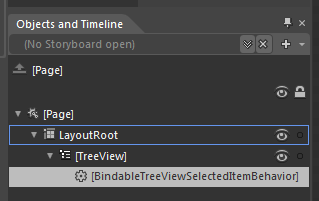

Using the Behavior in Blend


Just drop it on the TreeView control and set its Binding property.The XAML binding will look like this:


<sdk:TreeView ItemsSource="{Binding TreeNodes}" ...>
<i:Interaction.Behaviors>
<Behaviors:BindableTreeViewSelectedItemBehavior
Binding="{Binding SelectedNode}"/>
</i:Interaction.Behaviors>
</sdk:TreeView>


You don’t need to make it a two-way binding, the behavior looks after that for you. Here is a sample application that has two TreeView controls bound to the same data context. If you change the selected item on one TreeView it will update the selected item on the other TreeView:


Under The Hood


This attached behavior works by acting as a go-between using the TreeView.SelectedItemChanged event, the TreeView.SelectedItem property, and a private two-way binding on the data context. Here is a diagram that shows how the behavior wires itself up:


Diagram of relationships for behavior


Click on the diagram to see a larger version. The diagram can be broken down as follows:


  • The behavior examines it’s Binding property and uses that information to create a private two-way binding between the property on the data context of the tree view (in our example it’s against the SelectedNode property) and the behavior’s private SelectedItemProperty DependencyProperty.
  • When the value for the DataContext’s SelectedNode property changes, the change event for the SelectedItemProperty DependencyProperty (AssociatedObjectSelectedItemChanged) fires and we set the new value on the TreeView using the TreeView.SelectedItem property. This allows the tree view to have its selected item set from the data context.
  • The behavior also attaches an event handler for the TreeView.SelectedItemChanged event (also called SelectedItemChanged) which fires whenever the user changes the selected item.
  • When the SelectedItemChanged event handler is called, the behavior updates the value of its SelectedItemProperty DependencyProperty. This allows the data context to have its SelectedNode value updated when the user changes the selected item in the TreeView.

Summary


In this post I described an attached behavior that lets you achieve two-way binding on the TreeView.SelectedItem property. The behavior is especially useful if you are using the MVVM pattern to keep your views and view models separate, and want to avoid code in the View’s code-behind file. The source can be downloaded here.

Wednesday, April 7, 2010

Changing Data-Templates at run-time from the VM

[Updated – Fixed code samples]
What do you do when you have a list box or data grid that has a collection of items to display - but some items need to be presented differently than others? For example, I may have a collection of company staff members to display in a single ListBox, but the managerial staff need to have extra information displayed (they always do!), and each level is styled slightly differently like this for example:


In this post I'll describe a technique I have used successfully before - I'll stick with the list of staff example above to illustrate the solution, but the class types are going to be a little contrived for the sake of simplicity.

The Data
Lets define a StaffMember class like this:
   1: public enum StaffRoleType { Manager, MiddleManager, LowerManager, Pleb, Contractor }
   2:  
   3: public enum CoffeeType { Espresso, Cappuccino, HotChocolate, Other }
   4:  
   5: public class StaffMemeber  
   6: {
   7:     public string Title { get; set; }
   8:     public string FirstName { get; set; }
   9:     public string LastName { get; set; }
  10:     public StaffRoleType StaffRole { get; set; }
  11:     public CoffeeType CoffeeType { get; set; }
  12:     public Color FavouriteColor { get; set; }
  13:     public string CarType { get; set; }
  14: }

The StaffRoleType will be used to differentiate the managers from the plebs so we can display the really important information for managers like what kind of coffee they drink and what their favourite color is. If this was real code we might have a different class for each role type, and they would all implement the INotifyPropertyChanged interface. But that class will do for demonstration purposes.


Different Data = Different Data Templates

A nice way to solve this problem would be if we could somehow use different data templates to display each type of staff- but do this inside the existing controls like a ListBox. Ideally we could use Blend to design these different data types too. Of course, the ListBox doesn't let us define more than one data template for the ListBoxItem; but rather than try and rewrite the ListBox, we can achieve our goals with a couple of simple additions to the ContentControl:


   1: using System.Collections.ObjectModel;
   2: using System.Linq;
   3: using System.Windows;
   4: using System.Windows.Controls;
   5: public class SelectableContentControl : ContentControl
   6: {
   7:   public static readonly DependencyProperty TemplateNameProperty = DependencyProperty.Register(
   8:      "TemplateName",
   9:      typeof(string),
  10:      typeof(SelectableContentControl),
  11:      new PropertyMetadata(string.Empty, TemplateNameChanged));
  12:   
  13:   private readonly ObservableCollection<DataTemplate> templateCollection = new ObservableCollection<DataTemplate>();
  14:   
  15:   /// <summary>
  16:   /// Gets the collection of templates
  17:   /// </summary>
  18:   public ObservableCollection<DataTemplate> Templates
  19:   {
  20:      get
  21:      {
  22:          return this.templateCollection;
  23:      }
  24:   }
  25:   
  26:   /// <summary>
  27:   /// Gets or sets the name of the template to use
  28:   /// </summary>
  29:   public string TemplateName
  30:   {
  31:      get
  32:      {
  33:          return (string)GetValue(TemplateNameProperty);
  34:      }
  35:   
  36:      set
  37:      {
  38:          SetValue(TemplateNameProperty, value);
  39:      }
  40:   }
  41:   
  42:   /// <summary>
  43:   /// Select the appropriate DataTemplate when the Content changes.
  44:   /// </summary>
  45:   /// <param name="oldContent">The old Content value.</param>
  46:   /// <param name="newContent">The new Content value.</param>
  47:   protected override void OnContentChanged(object oldContent, object newContent)
  48:   {
  49:      base.OnContentChanged(oldContent, newContent);
  50:      this.SelectTemplate();
  51:   }
  52:   
  53:   private static void TemplateNameChanged(DependencyObject d, DependencyPropertyChangedEventArgs e)
  54:   {
  55:      ((SelectableContentControl)d).SelectTemplate();
  56:   }
  57:   
  58:   private void SelectTemplate()
  59:   {
  60:      if (!string.IsNullOrEmpty(this.TemplateName))
  61:      {
  62:          DataTemplate namedTemplate =
  63:              this.Templates.FirstOrDefault(
  64:                  t => t.GetValue(FrameworkElement.NameProperty).Equals(this.TemplateName));
  65:          if (null != namedTemplate)
  66:          {
  67:              this.ContentTemplate = namedTemplate;
  68:              return;
  69:          }
  70:      }
  71:   
  72:      // default to the first template
  73:      if (this.Templates.Count > 0)
  74:      {
  75:          this.ContentTemplate = this.Templates[0];
  76:      }
  77:   }
  78: }


The new control has two key properties:


  • Templates - an ObservableCollection of DataTemplate
  • TemplateName - a string representing the name of the template to choose.
The Templates property allows us to declare multiple DataTemplates in the XAML, and the TemplateName property allows us to bind to a property on the data to select which template to use. If we had multiple class types in our list, such as a Manager class etc, then we could bind on the ClassName, or even the class itself with a value converter.


This is what the XAML for a ListBox may look like:


   1: <ListBox ItemsSource="{Binding StaffList}" >
   2:     <ListBox.ItemTemplate>
   3:         <ss:SelectableContentControl TemplateName="{Binding StaffRole}" Content="{Binding}">
   4:             <ss:SelectableContentControl.Templates>
   5:  
   6:                 <!-- default for unmatched StaffRoleType values -->
   7:                 <DataTemplate>
   8:                     <local:PlebianUC />
   9:                 </DataTemplate>
  10:  
  11:                 <!-- Contractor template -->
  12:                 <DataTemplate x:Name="Contractor">
  13:                     <local:ContractorUC />
  14:                 </DataTemplate>
  15:  
  16:                 <!-- Contractor template -->
  17:                 <DataTemplate x:Name="MiddleManager">
  18:                     <local:MiddleManagerUC />
  19:                 </DataTemplate>
  20:  
  21:                 <!-- Contractor template -->
  22:                 <DataTemplate x:Name="Manager">
  23:                     <local:ManagerUC />
  24:                 </DataTemplate>
  25:             </ss:SelectableContentControl.Templates>
  26:         </ss:SelectableContentControl>
  27:     </ListBox.ItemTemplate>
  28: </ListBox>


So what's going on here?


The ListBox has it's ItemsSource bound to a property on the DataContext called StaffList, which contains a collection of StaffMember instances. The ListBox.ItemTemplate contains a single SelectableContentControl with its TemplateName property set to "StaffRole" and it's Content bound to the DataContext of the ListBoxItem. At run time when a DataTemplate is being created for each item in the listbox and the item is databound to it, the SelectableContentControl will read the StaffRole property and find a template with the same name as the StaffRole value. The first DataTemplate in the Templates collection will be used for any data items that have a StaffRole value that doesn't match a Template name. We don't even need a value converter in this example, since the StaffRole property will convert to a string without one.


In order to make this technique friendly to Blend you need to create a UserControl for each of the DataTemplates so that the content can be styled in Blend. If you are more comfortable writing XAML than using Blend then you can skip the UserControls and put the content directly in the DataTemplates. Either way, you will still need to specify the DataTemplate collection by hand in XAML since Blend doesn't provide and easy way to edit a collection of DataTemplate instances (at least that I know of)


Feel free to copy the code above and use it in your own projects. Let me know if you find it useful.