Showing posts with label XAML. Show all posts

Monday, August 23, 2010

Redial – A Dial Custom Control

In the last post I described a Dial User Control and promised I would turn it into a Custom Control. Re-doing it as a viewless custom control means it can be visually redesigned without having to write any behavior code.

Here is the control with a couple of different styles, with some of the dials bound to an items source. I also added an animation for the dial positions being added and removed. You can see this by changing the value of the big dial in the bottom left corner; its value sets the MaxValue of the top left dial.

You can grab the source here.

There are a couple of features in this control that weren’t in the User Control:

  • The ItemsSource property can be bound to a data source for the dial position items. If you use this then don’t use MaxValue since that is automatically determined from the data source.
  • If you don’t use an items source, the positions are auto-generated using the StartValue and MaxValue properties.
  • I added very basic support for the mouse wheel, but it needs improvement.
  • I changed the behavior of the RotationAngle property to take into account any initial rotation of the list box path, and also the span of the path.
  • You can click and drag around the dial positions to set the value

A Simple Style
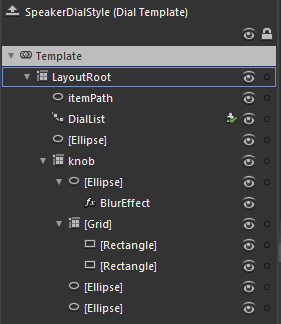
orientations

The template to the left shows the entire template for the black speaker-style dials in the top right of the sample application above. This is a good starting point for creating styles for the dial since it is very simple.

There are three key elements to note:

  1. The “itemPath” element is the ellipse that defines where the dial positions end up.
  2. The “DialList” element is the path list box that uses the itemPath. The Dial control won’t work without this. Any style for the Dial control must include a PathListBox control called “DialList”.
  3. The “Knob” grid contains the visual elements that are rotated – more about this below.

The remaining elements are not doing anything interesting other than adding to the visual appearance of the knob.

In order to get the knob to rotate, I have bound it to the RotationAngle property:

   1: <Grid x:Name="knob" Margin="10" RenderTransformOrigin="0.5,0.5">
   2:     <Grid.RenderTransform>
   3:         <CompositeTransform Rotation="{Binding RotationAngle, RelativeSource={RelativeSource TemplatedParent}}"/>
   4:     </Grid.RenderTransform>
   5:  
   6:     ...
   7:  
   8: </Grid>

The RotationAngle property calculates the correct position by looking at the DialList PathListBox, determining the rotation of it, and the span. You may have noticed that I used the “RelativeSource” syntax inside a regular Binding instead of using the TemplateBinding syntax. I did this out of habit, since elsewhere I use property converters on bindings in the other templates, and the TemplateBinding class does not support converters.


Here is an example that uses a converter:


   1: <LinearGradientBrush EndPoint="0.5,1" MappingMode="RelativeToBoundingBox" StartPoint="0.5,0">
   2:     <LinearGradientBrush.RelativeTransform>
   3:         <CompositeTransform CenterY="0.5" CenterX="0.5" 
   4:             Rotation="{Binding RotationAngle, RelativeSource={RelativeSource TemplatedParent}, Converter={StaticResource negativeConverter}}"/>
   5:     </LinearGradientBrush.RelativeTransform>
   6:     <GradientStop Color="Black" Offset="1"/>
   7:     <GradientStop Color="#FF3B3B3B"/>
   8: </LinearGradientBrush>

Feel free to use this control in your own projects.

Wednesday, June 30, 2010

Custom Controls – Extending the TextBox

The good folks over at Silverlight Show have just put up my article about writing a custom control. One of my earliest posts was on using a UserControl to create a WatermarkedTextBox. I’ve been meaning to follow up on it for a while on how to achieve the same thing (but better) using a Custom Control. In the example below it’s wired up as a filter for the list box. You can check the “Styled” box to apply a different style to the whole app, including the WatermarkedTextBox.

Go over to Silverlight Show to grab the source and read the full article.

Monday, June 28, 2010

A Chrome and Glass Theme- Part 8

Introduction

In this post I’m going to show you how to make the radio buttons I blogged about previously. These buttons have gone through many iterations and I’m still not sure I’m quite happy with them just yet, but I’ll cover them anyway since they introduce a few interesting attached properties. Here is the sample I’ve been building up, now with the radio buttons:

You can grab the source here.

This post is the 8th in a series. If you are not familiar with styling controls in Blend, or working with Resource Dictionaries then I would recommend that you start at the beginning of the series.

The Radio Button

When I first attempted this button I ended up with horribly complicated arrangement of shapes to get it to scale properly. I had placeholders and spacers and grids within grids, with some of them having their height bound to their widths (which doesn’t work very well). And I had half circles on the ends with gradient blends merging seamlessly into the gradient blend on a rectangle in the middle. It was pretty awful.

The previous blog about Automatic Rectangle Radius X and Y should give you an idea of a simpler way to achieve the look. In the end I went with the attached properties since they work nicely both at run-time and design-time. If you grab the source from the link above, you may have to build it in Blend to get it to use the attached properties on the design surface.

The RadioButton inherits from the ToggleButton, as does the CheckBox. They all have a common theme of the button being checked, unchecked, or indeterminate; The radio button just has a different visual appearance, and adds the GroupName property. This style could be adapted for the ToggleButton too, but it wouldn’t really work as a style for a CheckBox.

The contents for this button are grouped in a grid with two columns; the left column contains the orb, the right column contains the ContentPresenter element.

Creating a custom style template for a radio button shouldn’t be difficult at all if you have been following along with the series, but I thought it might be worthwhile to look at some of the elements that make up this button.

Scalable Rounded Ends

A rectangle has the RadiusX and RadiusY properties that let you turn the sharp corners into rounded corners. For this button I want the rounded ends to stay rounded, at the right proportion, regardless of the size of the button. Unfortunately, there is no easy way to set those properties to be half of the height of the rectangle.

As mentioned in the post about Automatic Rectangle Radius X and Y I used an attached property to achieve the rounded ends since that gave me the best result when working with Blend. I use 3 rectangles in the button: one for the rim using the ChromeBorder resource brush, one for the main body using the ChromeFill resource brush, and one the same size that uses the ChromeDarkeningLinear resource brush to make the white text stand out better.

The ellipse is used on the right end of the button to add some dark shading to make the button look rounder, and the Orb grid uses the same principle as this post.

I created an attached property called IsRounded that, when true, uses another attached property called RoundCapsRatio (which defaults to 0.5 if unset) that it multiplies against height or width (whichever is smaller) and applies to the RadiusX and RadiusY properties of the rectangle it is attached to. You may have to build the solution once in Blend to have it applied properly, but then the corner radius automatically updates in blend as the rectangle it is applied to changes size.

Scalable Orb

The other attached properties I created are WidthRatio and HeightRatio (not used in this example). I use the WidthRatio attached property on the Orb grid to keep it perfectly square so the ellipses inside it stay round. I can’t have this happen without an attached property because there is no other way (that works in Blend) to set the width of an element to be relative to the height. I set the WidthRatio to the value “1” to achieve this. I could have just used a Boolean attached property, but having the ratio makes it more reusable.

If you use both the attached properties on a visual element, the handler will prefer the WidthRatio over the HeightRatio. Here is the method that applies the property values. It only applies the values if they have actually been set:

   1: private static void UpdateSizeRatio(FrameworkElement element)
   2: {
   3:     double ratio;
   4:     if (element.ReadLocalValue(WidthRatioProperty) != DependencyProperty.UnsetValue)
   5:     {
   6:         ratio = (double)element.GetValue(WidthRatioProperty);
   7:         double height = element.ActualHeight;
   8:         if (!double.IsNaN(height) && height > 0)
   9:         {
  10:             element.Width = height * ratio;
  11:         }
  12:     }
  13:     else if (element.ReadLocalValue(HeightRatioProperty) != DependencyProperty.UnsetValue)
  14:     {
  15:         ratio = (double)element.GetValue(HeightRatioProperty);
  16:         double width = element.ActualWidth;
  17:         if (!double.IsNaN(width) && width > 0)
  18:         {
  19:             element.Height = width * ratio;
  20:         }
  21:     }
  22: }

Conclusion


As far as radio buttons go, these are fairly limited in their application since they are so big. They are too big to use in the same way as you would normally use a radio button, but they do make quite good navigation buttons instead of using tabs.


The use of Attached Properties seems the best solution for adding behavior to a visual element that works at design time in Blend, but it’s not ideal – I would really rather have a way to do this using Blend that didn’t need me to swap into the XAML.


References:


The icons are from the Tango Desktop Project.

Wednesday, April 7, 2010

Changing Data-Templates at run-time from the VM

[Updated – Fixed code samples]
What do you do when you have a list box or data grid that has a collection of items to display - but some items need to be presented differently than others? For example, I may have a collection of company staff members to display in a single ListBox, but the managerial staff need to have extra information displayed (they always do!), and each level is styled slightly differently like this for example:


In this post I'll describe a technique I have used successfully before - I'll stick with the list of staff example above to illustrate the solution, but the class types are going to be a little contrived for the sake of simplicity.

The Data
Lets define a StaffMember class like this:
   1: public enum StaffRoleType { Manager, MiddleManager, LowerManager, Pleb, Contractor }
   2:  
   3: public enum CoffeeType { Espresso, Cappuccino, HotChocolate, Other }
   4:  
   5: public class StaffMemeber  
   6: {
   7:     public string Title { get; set; }
   8:     public string FirstName { get; set; }
   9:     public string LastName { get; set; }
  10:     public StaffRoleType StaffRole { get; set; }
  11:     public CoffeeType CoffeeType { get; set; }
  12:     public Color FavouriteColor { get; set; }
  13:     public string CarType { get; set; }
  14: }

The StaffRoleType will be used to differentiate the managers from the plebs so we can display the really important information for managers like what kind of coffee they drink and what their favourite color is. If this was real code we might have a different class for each role type, and they would all implement the INotifyPropertyChanged interface. But that class will do for demonstration purposes.


Different Data = Different Data Templates

A nice way to solve this problem would be if we could somehow use different data templates to display each type of staff- but do this inside the existing controls like a ListBox. Ideally we could use Blend to design these different data types too. Of course, the ListBox doesn't let us define more than one data template for the ListBoxItem; but rather than try and rewrite the ListBox, we can achieve our goals with a couple of simple additions to the ContentControl:


   1: using System.Collections.ObjectModel;
   2: using System.Linq;
   3: using System.Windows;
   4: using System.Windows.Controls;
   5: public class SelectableContentControl : ContentControl
   6: {
   7:   public static readonly DependencyProperty TemplateNameProperty = DependencyProperty.Register(
   8:      "TemplateName",
   9:      typeof(string),
  10:      typeof(SelectableContentControl),
  11:      new PropertyMetadata(string.Empty, TemplateNameChanged));
  12:   
  13:   private readonly ObservableCollection<DataTemplate> templateCollection = new ObservableCollection<DataTemplate>();
  14:   
  15:   /// <summary>
  16:   /// Gets the collection of templates
  17:   /// </summary>
  18:   public ObservableCollection<DataTemplate> Templates
  19:   {
  20:      get
  21:      {
  22:          return this.templateCollection;
  23:      }
  24:   }
  25:   
  26:   /// <summary>
  27:   /// Gets or sets the name of the template to use
  28:   /// </summary>
  29:   public string TemplateName
  30:   {
  31:      get
  32:      {
  33:          return (string)GetValue(TemplateNameProperty);
  34:      }
  35:   
  36:      set
  37:      {
  38:          SetValue(TemplateNameProperty, value);
  39:      }
  40:   }
  41:   
  42:   /// <summary>
  43:   /// Select the appropriate DataTemplate when the Content changes.
  44:   /// </summary>
  45:   /// <param name="oldContent">The old Content value.</param>
  46:   /// <param name="newContent">The new Content value.</param>
  47:   protected override void OnContentChanged(object oldContent, object newContent)
  48:   {
  49:      base.OnContentChanged(oldContent, newContent);
  50:      this.SelectTemplate();
  51:   }
  52:   
  53:   private static void TemplateNameChanged(DependencyObject d, DependencyPropertyChangedEventArgs e)
  54:   {
  55:      ((SelectableContentControl)d).SelectTemplate();
  56:   }
  57:   
  58:   private void SelectTemplate()
  59:   {
  60:      if (!string.IsNullOrEmpty(this.TemplateName))
  61:      {
  62:          DataTemplate namedTemplate =
  63:              this.Templates.FirstOrDefault(
  64:                  t => t.GetValue(FrameworkElement.NameProperty).Equals(this.TemplateName));
  65:          if (null != namedTemplate)
  66:          {
  67:              this.ContentTemplate = namedTemplate;
  68:              return;
  69:          }
  70:      }
  71:   
  72:      // default to the first template
  73:      if (this.Templates.Count > 0)
  74:      {
  75:          this.ContentTemplate = this.Templates[0];
  76:      }
  77:   }
  78: }


The new control has two key properties:


  • Templates - an ObservableCollection of DataTemplate
  • TemplateName - a string representing the name of the template to choose.
The Templates property allows us to declare multiple DataTemplates in the XAML, and the TemplateName property allows us to bind to a property on the data to select which template to use. If we had multiple class types in our list, such as a Manager class etc, then we could bind on the ClassName, or even the class itself with a value converter.


This is what the XAML for a ListBox may look like:


   1: <ListBox ItemsSource="{Binding StaffList}" >
   2:     <ListBox.ItemTemplate>
   3:         <ss:SelectableContentControl TemplateName="{Binding StaffRole}" Content="{Binding}">
   4:             <ss:SelectableContentControl.Templates>
   5:  
   6:                 <!-- default for unmatched StaffRoleType values -->
   7:                 <DataTemplate>
   8:                     <local:PlebianUC />
   9:                 </DataTemplate>
  10:  
  11:                 <!-- Contractor template -->
  12:                 <DataTemplate x:Name="Contractor">
  13:                     <local:ContractorUC />
  14:                 </DataTemplate>
  15:  
  16:                 <!-- Contractor template -->
  17:                 <DataTemplate x:Name="MiddleManager">
  18:                     <local:MiddleManagerUC />
  19:                 </DataTemplate>
  20:  
  21:                 <!-- Contractor template -->
  22:                 <DataTemplate x:Name="Manager">
  23:                     <local:ManagerUC />
  24:                 </DataTemplate>
  25:             </ss:SelectableContentControl.Templates>
  26:         </ss:SelectableContentControl>
  27:     </ListBox.ItemTemplate>
  28: </ListBox>


So what's going on here?


The ListBox has it's ItemsSource bound to a property on the DataContext called StaffList, which contains a collection of StaffMember instances. The ListBox.ItemTemplate contains a single SelectableContentControl with its TemplateName property set to "StaffRole" and it's Content bound to the DataContext of the ListBoxItem. At run time when a DataTemplate is being created for each item in the listbox and the item is databound to it, the SelectableContentControl will read the StaffRole property and find a template with the same name as the StaffRole value. The first DataTemplate in the Templates collection will be used for any data items that have a StaffRole value that doesn't match a Template name. We don't even need a value converter in this example, since the StaffRole property will convert to a string without one.


In order to make this technique friendly to Blend you need to create a UserControl for each of the DataTemplates so that the content can be styled in Blend. If you are more comfortable writing XAML than using Blend then you can skip the UserControls and put the content directly in the DataTemplates. Either way, you will still need to specify the DataTemplate collection by hand in XAML since Blend doesn't provide and easy way to edit a collection of DataTemplate instances (at least that I know of)


Feel free to copy the code above and use it in your own projects. Let me know if you find it useful.