Showing posts with label Styles. Show all posts

Wednesday, February 2, 2011

Designing for Browser-Zoom: Part 2

[UPDATED: Fixed broken links for download]

The ability to adjust the magnification level in your browser (using zoom + or -) has the potential to ruin your carefully crafted UI design. In Part 1 we took a look at the mechanisms involved in browser zoom and the effect it can have on your Silverlight app (particularly the EnableAutoZoom setting).

In this part we are going to handle browser zoom with visual states and use an attached behaviour that allows us to integrate zoom management into our views and control templates from Blend, without having to write any code.

A Demonstration

Here is the sample application we will be working with. This is just a mock layout of a simple utility app – it is contrived for the purposes of showing how scaling can affect your design:

to launch this in a separate window and use the the browser’s zooming feature to zoom in to 150%, 200%, then back to 100%. This demonstrates the desired behaviour. You will see the spacing content change at each of those zoom levels – and at 200% the images are no longer visible. There is a link for the source code at the end of the article.

If this app is zoomed into 200% within the same available space, without adjusting the design for the zoom level, then the result is the undesired behaviour which looks like this:

ZoomWithoutResizerCapture200

As you can see, the title bar now takes up half the available height, a complete row of buttons is missing, and the button captions are cut off. Remember, if the user has their DPI settings set to show large text this could already be happening to your existing Silverlight apps!

Using Visual States for Zoom Levels

I’m going to make an assumption here for the sake of demonstration. I’m going to assume that some user research was carried out and showed that people were zooming in (or it was happening automatically based on the host computer’s DPI setting) because they liked large text – the images are not important to them.

Given this assumption, I need to be able to adjust the layout for different zoom levels, giving priority to the text in the application (headings, button captions etc). Visual States are ideal for showing the same information in a different way. I’ll use Blend to show how I have set up the visual states here:

ZoomStates

The image above shows the VisualStateGroup “ZoomStates” with three VisualStates in the group: Unzoomed, Zoomed150, and Zoomed200. In each of these states I have adjusted the spacing available for the header and adjusted the margins around each of the panels (which are HeaderedContentControls).

I have a problem though: I have customized the control templates for the HeaderedContentControl and the Button controls. How do I include changes to the control templates as part of a visual state for the main view? I can’t! I could create 3 different control templates for each control I was customizing, but that would quickly become a maintenance nightmare for a decent sized project.

There is another answer to this problem that I will discuss below, but for now we have to work out how to switch states as the browser zoom changes.

The Application.Host.Content.Zoomed Event

The Content class in the System.Windows.Interop namespace (part of the Silverlight System.Windows assembly) is described by the documentation as follows:

“Reports details about the Silverlight-based application's instantiation settings, and exposes some of the HTML DOM values for the hosted Silverlight plug-in instance. System.Windows.Interop.Content contains APIs that specifically relate to the Silverlight content area (the area declared by the width and height in the initialization).”

One of its members is the Zoomed event. If the browser starts up and responds to the host system’s DPI settings, or if the user manually zooms, then this event is fired. We can hook into this event in the Loaded event of our main view and respond to changes in the zoom like this:

   1: public partial class MainPage : UserControl
   2: {
   3:     public MainPage()
   4:     {
   5:         // Required to initialize variables
   6:         InitializeComponent();
   7:         Application.Current.Host.Content.Zoomed += this.Content_Zoomed;
   8:     }
   9:  
  10:     private void Content_Zoomed(object sender, EventArgs e)
  11:     {
  12:         var zoom = Application.Current.Host.Content.ZoomFactor;
  13:         if (zoom <= 1)
  14:         {
  15:             VisualStateManager.GoToState(this, "Unzoomed", true);
  16:         }
  17:         else if (zoom <= 1.5)
  18:         {
  19:             VisualStateManager.GoToState(this, "Zoomed150", true);
  20:         }
  21:         else if (zoom <= 2)
  22:         {
  23:             VisualStateManager.GoToState(this, "Zoomed200", true);
  24:         }
  25:     }
  26: }


The above code hooks into the Zoomed event and, when it fires, checks what the current ZoomFactor is. It then uses that value to determine which visual state it should transition to.


Now we have a mechanism to adjust our design to the current zoom level, but we still have a few problems:


  1. We still can’t reach into control templates to adjust margins and content

  2. We have to re-write this code (paying careful attention to state names) for every view we create

  3. We have to write code! Not very friendly for dedicated designers who are working with Blend


Behavioural Zoom Management


An attached behaviour could help us solve all three of these problems. Let's look at each problem in reverse order:


Unfriendly to a designer: An attached behaviour is drag-n-drop easy and we can use a Blend SDK attribute to help us pick the state to transition to.


Re-writing code: An attached behaviour encapsulates the code and lets us reuse it with ease.


Reaching into the control template: Hmmm, this one is a little more interesting. A control template already comes with pre-defined states (some controls have none) and using VisualStateManager.GoToState does not work for any additional states you add by hand (our ZoomedStates group). So if we customize a control template and add our new zoom states to it, can we find a way to transition to those states? As it turns out, there is a way: A visual state is a wrapper around a storyboard – so we could write our attached behaviour to locate the appropriate state, reach inside it for the storyboard, and just play the storyboard. This actually works, but there is a caveat that I will discuss below.


You can download the code for the ZoomResponder attached behaviour here. Without giving a full listing, I’ll go over the main parts of the code.


First up, here are the dependency properties for the attached behaviour:


   1: public static readonly DependencyProperty ZoomRangeStartProperty = DependencyProperty.Register(
   2:     "ZoomRangeStart", typeof(double), typeof(BrowserZoomStateBehavior), null);
   3:  
   4: public static readonly DependencyProperty ZoomRangeEndProperty = DependencyProperty.Register(
   5:     "ZoomRangeEnd", typeof(double), typeof(BrowserZoomStateBehavior), null);
   6:  
   7: public static readonly DependencyProperty StateNameProperty = DependencyProperty.Register(
   8:     "StateName", typeof(string), typeof(BrowserZoomStateBehavior), null);


Each dependency property also has a public class property with a getter and a setter.


This attached behaviour is responsible for one zoom state (“StateName”). To respond to the 150% and 200% zoom levels we need 3 of these attached behaviours (the third one is to transition back to the unzoomed state). The “ZoomRangeStart” is inclusive and the “ZoomRangeEnd” is exclusive. Therefore, the behaviour for switching to the 150% will have ZoomRangeStart = 1.5 and ZoomRangeEnd = 2 since there will be a different instance of the behaviour responsible for switching to 200%.


The public class property for the StateName property is decorated with the CustomPropertyValueEditor attribute from the System.Windows.Interactivity namespace:


   1:  
   2: [CustomPropertyValueEditor(CustomPropertyValueEditor.StateName)]
   3: public string StateName
   4: {
   5:     get
   6:     {
   7:         return (string)this.GetValue(StateNameProperty);
   8:     }
   9:     set
  10:     {
  11:         this.SetValue(StateNameProperty, value);
  12:     }
  13: }


That attribute lets Blend know that the property is the name of an existing state in the XAML. It changes the property editor for the the StateName property from a text box to a drop down combo box that lists the available states that have been defined. Handy!


So the view will have three of these templates attached to its root:AttachedZoomResponderBehaviors


Here is the main code that handles the state change:


   1: private void UpdateZoomedState()
   2: {
   3:     var zoomed = Application.Current.Host.Content.ZoomFactor;
   4:     if (zoomed >= this.ZoomRangeStart && zoomed < this.ZoomRangeEnd)
   5:     {
   6:         if (!VisualStateManager.GoToState(
   7:             this.AssociatedObject, 
   8:             this.StateName,
   9:             true))
  10:         {
  11:             if (null == this.AssociatedObject.Parent &&
  12:                 VisualTreeHelper.GetParent(this.AssociatedObject) is Control)
  13:             {
  14:                 // play the storyboard - we are probably inside a control template
  15:                 var stateGroups = VisualStateManager.GetVisualStateGroups(
  16:                     this.AssociatedObject);
  17:                 foreach (VisualStateGroup stateGroup in stateGroups)
  18:                 {
  19:                     foreach (VisualState visualState in stateGroup.States)
  20:                     {
  21:                         if (null != visualState.Storyboard &&
  22:                             visualState.Name.Equals(this.StateName))
  23:                         {
  24:                             visualState.Storyboard.Begin();
  25:                             return;
  26:                         }
  27:                     }
  28:                 }
  29:             }
  30:         }
  31:     }
  32: }


The behaviour first tries to use the VisualStateManager to transition to the associated state. If the result of the call to VisualStateManager.GoToState is false then we know the call failed, possibly because the associated object is inside a control template (as discussed above). The code checks to see if the logical parent of the associated object is null and if the visual parent of the associated object is a control. If both of these conditions are true then we will assume we are attached to a control template and try to find a matching state associated with it. If we find one, we grab its storyboard and play it.


Caveats


There is one thing to be aware of when using this inside a control template. Do not use storyboards with “From” values in the key frames, otherwise you will end up with bizarre animations playing when they should not. For example, if you had the visual state for “Unzoomed” specify a “From” value for a key frame, you would end up playing that storyboard regardless of the zoom factor the browser was last set at, including values that fall between the different states (e.g. 125%).


Summary


In these two posts I have shown how the browser zoom can play a big part in how your design appears to the end user. Introducing visual states to accommodate different zoom levels is one way to handle it. An attached behaviour that wraps up the management of switching states in response to the zoom event provides an elegant response to this issue that designers can use.


You can grab the code here.

Monday, August 23, 2010

Redial – A Dial Custom Control

In the last post I described a Dial User Control and promised I would turn it into a Custom Control. Re-doing it as a viewless custom control means it can be visually redesigned without having to write any behavior code.

Here is the control with a couple of different styles, with some of the dials bound to an items source. I also added an animation for the dial positions being added and removed. You can see this by changing the value of the big dial in the bottom left corner; its value sets the MaxValue of the top left dial.

You can grab the source here.

There are a couple of features in this control that weren’t in the User Control:

  • The ItemsSource property can be bound to a data source for the dial position items. If you use this then don’t use MaxValue since that is automatically determined from the data source.
  • If you don’t use an items source, the positions are auto-generated using the StartValue and MaxValue properties.
  • I added very basic support for the mouse wheel, but it needs improvement.
  • I changed the behavior of the RotationAngle property to take into account any initial rotation of the list box path, and also the span of the path.
  • You can click and drag around the dial positions to set the value

A Simple Style

orientations

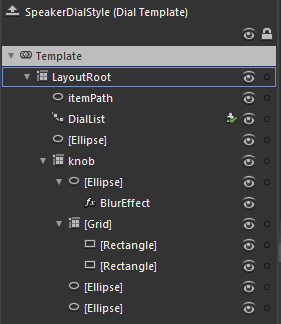
The template to the left shows the entire template for the black speaker-style dials in the top right of the sample application above. This is a good starting point for creating styles for the dial since it is very simple.

There are three key elements to note:

  1. The “itemPath” element is the ellipse that defines where the dial positions end up.
  2. The “DialList” element is the path list box that uses the itemPath. The Dial control won’t work without this. Any style for the Dial control must include a PathListBox control called “DialList”.
  3. The “Knob” grid contains the visual elements that are rotated – more about this below.

The remaining elements are not doing anything interesting other than adding to the visual appearance of the knob.

In order to get the knob to rotate, I have bound it to the RotationAngle property:

   1: <Grid x:Name="knob" Margin="10" RenderTransformOrigin="0.5,0.5">
   2:     <Grid.RenderTransform>
   3:         <CompositeTransform Rotation="{Binding RotationAngle, RelativeSource={RelativeSource TemplatedParent}}"/>
   4:     </Grid.RenderTransform>
   5:  
   6:     ...
   7:  
   8: </Grid>

The RotationAngle property calculates the correct position by looking at the DialList PathListBox, determining the rotation of it, and the span. You may have noticed that I used the “RelativeSource” syntax inside a regular Binding instead of using the TemplateBinding syntax. I did this out of habit, since elsewhere I use property converters on bindings in the other templates, and the TemplateBinding class does not support converters.


Here is an example that uses a converter:


   1: <LinearGradientBrush EndPoint="0.5,1" MappingMode="RelativeToBoundingBox" StartPoint="0.5,0">
   2:     <LinearGradientBrush.RelativeTransform>
   3:         <CompositeTransform CenterY="0.5" CenterX="0.5" 
   4:             Rotation="{Binding RotationAngle, RelativeSource={RelativeSource TemplatedParent}, Converter={StaticResource negativeConverter}}"/>
   5:     </LinearGradientBrush.RelativeTransform>
   6:     <GradientStop Color="Black" Offset="1"/>
   7:     <GradientStop Color="#FF3B3B3B"/>
   8: </LinearGradientBrush>

Feel free to use this control in your own projects.

Wednesday, June 30, 2010

Custom Controls – Extending the TextBox

The good folks over at Silverlight Show have just put up my article about writing a custom control. One of my earliest posts was on using a UserControl to create a WatermarkedTextBox. I’ve been meaning to follow up on it for a while on how to achieve the same thing (but better) using a Custom Control. In the example below it’s wired up as a filter for the list box. You can check the “Styled” box to apply a different style to the whole app, including the WatermarkedTextBox.

Go over to Silverlight Show to grab the source and read the full article.

Monday, June 28, 2010

A Chrome and Glass Theme- Part 8

Introduction

In this post I’m going to show you how to make the radio buttons I blogged about previously. These buttons have gone through many iterations and I’m still not sure I’m quite happy with them just yet, but I’ll cover them anyway since they introduce a few interesting attached properties. Here is the sample I’ve been building up, now with the radio buttons:

You can grab the source here.

This post is the 8th in a series. If you are not familiar with styling controls in Blend, or working with Resource Dictionaries then I would recommend that you start at the beginning of the series.

The Radio Button

When I first attempted this button I ended up with horribly complicated arrangement of shapes to get it to scale properly. I had placeholders and spacers and grids within grids, with some of them having their height bound to their widths (which doesn’t work very well). And I had half circles on the ends with gradient blends merging seamlessly into the gradient blend on a rectangle in the middle. It was pretty awful.

The previous blog about Automatic Rectangle Radius X and Y should give you an idea of a simpler way to achieve the look. In the end I went with the attached properties since they work nicely both at run-time and design-time. If you grab the source from the link above, you may have to build it in Blend to get it to use the attached properties on the design surface.

The RadioButton inherits from the ToggleButton, as does the CheckBox. They all have a common theme of the button being checked, unchecked, or indeterminate; The radio button just has a different visual appearance, and adds the GroupName property. This style could be adapted for the ToggleButton too, but it wouldn’t really work as a style for a CheckBox.

The contents for this button are grouped in a grid with two columns; the left column contains the orb, the right column contains the ContentPresenter element.

Creating a custom style template for a radio button shouldn’t be difficult at all if you have been following along with the series, but I thought it might be worthwhile to look at some of the elements that make up this button.

Scalable Rounded Ends

A rectangle has the RadiusX and RadiusY properties that let you turn the sharp corners into rounded corners. For this button I want the rounded ends to stay rounded, at the right proportion, regardless of the size of the button. Unfortunately, there is no easy way to set those properties to be half of the height of the rectangle.

As mentioned in the post about Automatic Rectangle Radius X and Y I used an attached property to achieve the rounded ends since that gave me the best result when working with Blend. I use 3 rectangles in the button: one for the rim using the ChromeBorder resource brush, one for the main body using the ChromeFill resource brush, and one the same size that uses the ChromeDarkeningLinear resource brush to make the white text stand out better.

The ellipse is used on the right end of the button to add some dark shading to make the button look rounder, and the Orb grid uses the same principle as this post.

I created an attached property called IsRounded that, when true, uses another attached property called RoundCapsRatio (which defaults to 0.5 if unset) that it multiplies against height or width (whichever is smaller) and applies to the RadiusX and RadiusY properties of the rectangle it is attached to. You may have to build the solution once in Blend to have it applied properly, but then the corner radius automatically updates in blend as the rectangle it is applied to changes size.

Scalable Orb

The other attached properties I created are WidthRatio and HeightRatio (not used in this example). I use the WidthRatio attached property on the Orb grid to keep it perfectly square so the ellipses inside it stay round. I can’t have this happen without an attached property because there is no other way (that works in Blend) to set the width of an element to be relative to the height. I set the WidthRatio to the value “1” to achieve this. I could have just used a Boolean attached property, but having the ratio makes it more reusable.

If you use both the attached properties on a visual element, the handler will prefer the WidthRatio over the HeightRatio. Here is the method that applies the property values. It only applies the values if they have actually been set:

   1: private static void UpdateSizeRatio(FrameworkElement element)
   2: {
   3:     double ratio;
   4:     if (element.ReadLocalValue(WidthRatioProperty) != DependencyProperty.UnsetValue)
   5:     {
   6:         ratio = (double)element.GetValue(WidthRatioProperty);
   7:         double height = element.ActualHeight;
   8:         if (!double.IsNaN(height) && height > 0)
   9:         {
  10:             element.Width = height * ratio;
  11:         }
  12:     }
  13:     else if (element.ReadLocalValue(HeightRatioProperty) != DependencyProperty.UnsetValue)
  14:     {
  15:         ratio = (double)element.GetValue(HeightRatioProperty);
  16:         double width = element.ActualWidth;
  17:         if (!double.IsNaN(width) && width > 0)
  18:         {
  19:             element.Height = width * ratio;
  20:         }
  21:     }
  22: }

Conclusion


As far as radio buttons go, these are fairly limited in their application since they are so big. They are too big to use in the same way as you would normally use a radio button, but they do make quite good navigation buttons instead of using tabs.


The use of Attached Properties seems the best solution for adding behavior to a visual element that works at design time in Blend, but it’s not ideal – I would really rather have a way to do this using Blend that didn’t need me to swap into the XAML.


References:


The icons are from the Tango Desktop Project.

Monday, June 14, 2010

Automatic Rectangle Radius X and Y

Introduction

I created a design for a radio button that looks like this:

I'm going to write a future post on how to do this button, but I want to refine it a bit first. In this post I’m going to describe the approach I used for the rounded end-caps in the hopes that someone will help me perfect it.

I have the following requirements for this radio button style:
  • It must be re-sizable
  • The rounded ends must stay perfect half circles in proportion to the height of the button
  • It must behave correctly in Blend
  • Optional Extra: It would be nice to not have to manually edit XAML in Blend

I have the first three ticked off but the best approach so far still requires editing the XAML by hand. Here is a simple graphic to illustrate the end result when applied to a Rectangle element. The RadiusX and RadiusY are set to half the height of the rectangle:

Having the RadiusX and RadiusY calculated automatically is crucial to this design since I want it to be fully scalable (within reason).

I’ve been through several different approaches trying to get the full 4 marks, but 3 is the best I can manage. If you can spot any improvements or alternative approaches I would welcome suggestions.

Attached Property: 3 out of 4

The winning approach so far is to use an Attached Property that calculates the radii when the rectangle changes size. I made the attached property a little more generic by adding another attached property for specifying a ratio; 0.5 (the default) would give the result above. I also made it work off the lesser of the height and width values to cater for rectangles that are longer than they are wide. Here is the code for the attached property:

   1: using System;
   2: using System.Windows;
   3: using System.Windows.Shapes;
   4:  
   5: /// <summary>
   6: /// Contains attached properties for specifiying rounded ends on a Rectangle
   7: /// </summary>
   8: public static class RoundCaps
   9: {
  10:     /// <summary>
  11:     /// Attached Dependency Property for the IsRounded property
  12:     /// </summary>
  13:     public static readonly DependencyProperty IsRoundedProperty = DependencyProperty.RegisterAttached(
  14:         "IsRounded",
  15:         typeof(bool),
  16:         typeof(RoundCaps),
  17:         new PropertyMetadata(false, IsRoundedChanged));
  18:  
  19:     /// <summary>
  20:     /// Attached Dependency Property for the RoundCapsRatio property
  21:     /// </summary>
  22:     public static readonly DependencyProperty RoundCapsRatioProperty = DependencyProperty.RegisterAttached(
  23:         "RoundCapsRatio",
  24:         typeof(double),
  25:         typeof(RoundCaps),
  26:         new PropertyMetadata(0.5, RoundCapsRatioChanged));
  27:  
  28:     /// <summary>
  29:     /// Gets a value indicating if the Rectangle is rounded.
  30:     /// </summary>
  31:     /// <param name="d">The rectangle.</param>
  32:     /// <returns>true if the rectangle is rounded, else false</returns>
  33:     public static bool GetIsRounded(DependencyObject rectangle)
  34:     {
  35:         return (bool)rectangle.GetValue(IsRoundedProperty);
  36:     }
  37:  
  38:     /// <summary>
  39:     /// Sets a value indicating if the Rectangle is rounded.
  40:     /// </summary>
  41:     /// <param name="rectangle">The rectangle.</param>
  42:     /// <param name="value">true if the rectangle is rounded, else false.</param>
  43:     public static void SetIsRounded(DependencyObject rectangle, object value)
  44:     {
  45:         rectangle.SetValue(IsRoundedProperty, value);
  46:     }
  47:  
  48:     /// <summary>
  49:     /// Gets the roundedness ratio of the rectangle.
  50:     /// </summary>
  51:     /// <param name="rectangle">The ratio, relative to the lesser value of the rectangle's height and width.</param>
  52:     /// <returns>The ratio currently applied when calculating the roundedness</returns>
  53:     public static double GetRoundCapsRatio(DependencyObject rectangle)
  54:     {
  55:         return (double)rectangle.GetValue(RoundCapsRatioProperty);
  56:     }
  57:  
  58:     /// <summary>
  59:     /// Sets the roundedness ratio of the rectangle.
  60:     /// </summary>
  61:     /// <param name="rectangle">The ratio, relative to the lesser value of the rectangle's height and width.</param>
  62:     /// <returns>The ratio to be applied when calculating the roundedness</returns>
  63:     public static void SetRoundCapsRatio(DependencyObject d, object value)
  64:     {
  65:         d.SetValue(RoundCapsRatioProperty, value);
  66:     }
  67:  
  68:     private static void IsRoundedChanged(DependencyObject d, DependencyPropertyChangedEventArgs e)
  69:     {
  70:         Rectangle rect = d as Rectangle;
  71:         if (null == d)
  72:             return;
  73:  
  74:         bool isRounded = (bool)e.NewValue == true;
  75:         if (isRounded)
  76:         {
  77:             rect.SizeChanged += RectSizeChanged;
  78:             UpdateRectangle(rect);
  79:         }
  80:         else
  81:         {
  82:             rect.SizeChanged -= RectSizeChanged;
  83:         }
  84:     }
  85:  
  86:     private static void RoundCapsRatioChanged(DependencyObject d, DependencyPropertyChangedEventArgs e)
  87:     {
  88:         Rectangle rect = d as Rectangle;
  89:         if (null == rect)
  90:         {
  91:             return;
  92:         }
  93:  
  94:         UpdateRectangle(rect);
  95:     }
  96:  
  97:     private static void RectSizeChanged(object sender, SizeChangedEventArgs e)
  98:     {
  99:         Rectangle rect = sender as Rectangle;
 100:         if (null == rect)
 101:         {
 102:             return;
 103:         }
 104:  
 105:         UpdateRectangle(rect);
 106:     }
 107:  
 108:     private static void UpdateRectangle(Rectangle rect)
 109:     {
 110:         double ratio = (double)rect.GetValue(RoundCapsRatioProperty);
 111:  
 112:         rect.RadiusX = Math.Min(rect.ActualHeight, rect.ActualWidth) * ratio;
 113:         rect.RadiusY = rect.RadiusX;
 114:     }
 115: }

This is how the XAML looks (without the RoundedRatio property which defaults to 0.5 anyway):


<Rectangle x:Name="rectangle" local:RoundCaps.IsRounded="True" Fill="#FF2D2D2D"/>


This approach works nicely at both run time and design time (1 point each) and is fully scalable (1 point). Given the awkwardness of the other approaches I’ve tried, this is the winning solution so far.


Here are the two other approaches I’ve tried that didn’t fare so well.


Value Converter: 1 Out Of 4


One approach was to bind the RadiusX and RadiusY properties of the rectangle to itself and use an IValueConverter to calculate the values based off the height and width of the rectangle. In case you’re interested, here is the code for the value converter:


   1: public class RatioConverter : IValueConverter
   2: {
   3:  
   4:     public object Convert(object value, Type targetType, object parameter, System.Globalization.CultureInfo culture)
   5:     {
   6:         FrameworkElement element = (FrameworkElement)value;
   7:         double height = element.ActualHeight;
   8:         double number = height;
   9:         double ratio = double.Parse((string)parameter);
  10:         return number * ratio;
  11:     }
  12:  
  13:     public object ConvertBack(object value, Type targetType, object parameter, System.Globalization.CultureInfo culture)
  14:     {
  15:         throw new NotSupportedException();
  16:     }
  17: }

The converter doesn’t work at all at run time because it evaluates during the Measure and Arrange cycle for the visual tree, which means that ActualHeight and ActualWidth haven’t actually been calculated and are still 0. I will give it half a point because if I explicitly set the height rather than use “Auto” it does work; but having to explicitly set the height is not good if I’m using this approach inside a resizable Button’s control template.


I will also give it 0.5 for working in Blend – almost. Again, if I explicitly set the height it works in Blend. Blend does somehow manage to apply it correctly for Auto height but only when I build the project (no extra points).


I tried a couple of variations around this, such as binding against the width and height of a sibling element (or cousin) but it started getting a little bit ridiculous and the code-smell was pretty terrible.


Attached Behavior: The Wrong 3 Out Of 4


Another thing I tried was writing an attached behavior for a Rectangle that would automatically set the corner radius values based on the dimensions of the rectangle. That works fine for a running application, but behaviors don't execute in Blend, so the design-time experience is ruined since the corners remain square.


This is the code for the behavior:


   1: public class RoundCapsBehavior : Behavior<Rectangle>
   2: {
   3:     public static readonly DependencyProperty RoundedRatioProperty = DependencyProperty.Register(
   4:         "RoundedRatio", typeof(double), typeof(RoundCapsBehavior), new PropertyMetadata(0.5, RoundedRatioChanged));
   5:  
   6:     public double RoundedRatio
   7:     {
   8:         get { return (double)this.GetValue(RoundedRatioProperty); }
   9:         set { this.SetValue(RoundedRatioProperty, value); }
  10:     }
  11:  
  12:     protected override void OnAttached()
  13:     {
  14:         base.OnAttached();
  15:         this.AssociatedObject.SizeChanged += AssociatedObjectSizeChanged;
  16:     }
  17:  
  18:     protected override void OnDetaching()
  19:     {
  20:         base.OnDetaching();
  21:         this.AssociatedObject.SizeChanged -= AssociatedObjectSizeChanged;
  22:     }
  23:  
  24:     void AssociatedObjectSizeChanged(object sender, SizeChangedEventArgs e)
  25:     {
  26:         this.UpdateRadiusXY();
  27:     }
  28:  
  29:     private void UpdateRadiusXY()
  30:     {
  31:         this.AssociatedObject.RadiusX =
  32:             Math.Min(this.AssociatedObject.ActualHeight, this.AssociatedObject.ActualWidth)
  33:             * this.RoundedRatio;
  34:         this.AssociatedObject.RadiusY = this.AssociatedObject.RadiusX;
  35:     }
  36:  
  37:     private static void RoundedRatioChanged(DependencyObject d, DependencyPropertyChangedEventArgs e)
  38:     {
  39:         RoundCapsBehavior behavior = d as RoundCapsBehavior;
  40:         if (null == behavior)
  41:             return;
  42:         behavior.UpdateRadiusXY();
  43:     }
  44: }

It’s pretty simple – it just attaches a handler to the SizeChanged event and recalculates the corners when the event fires. It uses a property on the behavior that you can change the ratio with; the default 0.5 so the radius values will be half the height or width (whichever is larger).


It gets 1 point for working perfectly at run time, and 1 point for being scalable. It also gets the bonus point for not requiring any direct editing of the XAML, which gives it 3 out of 4, but one of those 3 was optional and it missed the third required point.


This one is probably the most frustrating because it feels like it should work. Behaviors, after all, were created as a convenience for the design surface – attached properties can do everything a behavior can – but the OnAttached and OnDetached methods are not called when the behaviors are used inside Blend.


Summary


So the Attached Dependency Property is currently winning the race, and unless someone comes up with a better solution, it will be the method-of-choice for the radio button style at the top. I just wish that Blend exposed a visual mechanism for adding custom attached properties to elements. Attached Behaviors were meant to give us that, but the OnAttached and OnDetached don’t get called so the behavior is not applied in the design surface.