Sunday, March 14, 2010

A Scalable Orb Panel-Button-Thingy

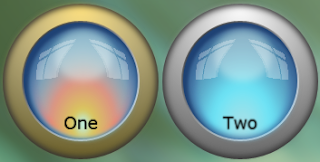
I think I may have mentioned before that I'm not much of an artist - thankfully the internet is chock-full of inspirational ideas. When browsing around some Photoshop tutorial sites, I came across an avatar of enzudesign on a forum; the avatar looks like this.

That's a cool looking button. So credit where credit's due - enzudesign is a talented artist. I wanted to try create something similar in Silverlight that would work as a button, following the same kind of process that I used for the Radio Button I did recently. This one has a LOT more content to it. My first attempt at it required 14 ellipses; 11 of those requiring a blur effect. It also meant containing those ellipses in about 18 proportional columns and rows. It looked nice, but performed poorly. I suspect all those blurs were chewing through a lot of CPU. I don't know how much CPU effort it takes to update those proportional values into real values when the whole thing is animating, but I'm guessing it contributed to the poor performance. This is what it looked like with and without the blur effects:


The blur gives the chrome surrounding ring a rounder appearance, and makes the black look more "rubbery". In comparison, the image without the blur looks stark. I guess this is quite subjective, but to my eyes, the blurred button looks nicer. But it's performance is terrible. I turned it into a button template and the transitions from Normal to MouseOver were not smooth at all. I've included a (collapsed) copy of the above design in the download. So it looked great but it had to lose some detail.

The result, after trimming it down, is embedded below, but I wanted to do more with it than just use it as a button. It occurred to me that this design would make a nice border for a panel; cut it into quarters and you have the corners. All it would need is filling in some horizontal and vertical banding to join the corners. "All it would need" actually turned out to be somewhat fiddly, but before I bore you with the details, the effect I was after needed to have two features:
  1. The button itself would scale nicely, keeping proportion where it needed to
  2. The transition from round orb to rounded panel should be as seamless as possible.
Here is what the "finished" product looks like (download link at the bottom of the post):


The button now consists of only 10 ellipses; 4 of those with blur effects. I won't go through the whole process of compositing the button since that was covered here. But I will quickly cover the process I used of turning an ellipse into a rounded panel.

Setting up the Panel Grid and Corners

I wanted a panel where the corners stay the same and, as the panel grows or shrinks, the "filler" between the corners would expand or contract to fill the gap. The first thing to do was to work out how to get just the appropriate part of each corner to show. I played around with a few options such as using a clipping path, an opacity mask, or using the Path | Subtract tool to convert the ellipses into just the quarter that was needed. These approaches all had their own problems: I don't like clipping paths because they are high-maintenance to animate in storyboards; the Opacity Mask has similar problems since it essentially just a brush that covers the whole object; using the Path | Subtract tool gave the right shape, but the blur effects and the gradients were now applied to just that quarter and proved too fiddly to work with. This was compounded by the fact that the button is not symmetrical across all four quarters.

In the end I discovered that if I confined the whole thing into a grid cell, but sized it so that it was twice as wide and twice as high as the cell, then the Grid automatically clipped out everything except the bit that fitted in the cell. So the here is what the containing grid looks like with the four corners in place:


The first and last columns, and the first and last rows, are each set to a fixed width/height (in this case 50 pixels). The middle columns and rows have their width/height set to "1*" to take up all the gap between the fixed rows and columns. Each corner has an entire copy of the "button" shapes sized to 100x100 pixels, and has it's horizontal/vertical alignment set to the appropriate values for each corner.

Although this provides the corners that I need, I'm not entirely happy with this approach because I can't easily animate the column width and height of the corner cells if I want the radius of the corners to change. In the embedded Silverlight app above, it is the button itself that is changing radius - not the panel grid. I would like to come back and address this at a later date to work out how to achieve this more easily. I have in mind that creating a custom control with template parts for the corners and horizontal fills would work - I'll have to experiment when I get the time.

The Fillers

The next stage was to create the fills between the corners and in the middle. For the top and bottom fills, this was achieved by copying the whole button structure, changing the ellipses into rectangles, and removing the columns from the containing grid to make the shapes span the whole grid. I had to change into the XAML view to change the ellipse tags to rectangle tags.

The resulting grid is sized the same as the corner shapes (100 pixels high) and restricted to the middle top grid cell to clip out the bottom half.

The same result is copied and pasted for the bottom fill and placed in the middle bottom cell.

The vertical fills are done essentially the same except there were a couple of areas that were a bit trickier because the button is asymmetrical vertically. I was able to remove a few of the shapes for the vertical fill because it's mostly just black between the chrome ring and the blue orb center. The trickiest part was the center blue part of the orb. The bit that goes from the the left side of the blue center to the right side of the blue center. For the other rectangles I just tweaked the existing gradients, but for the center rectangle I created the gradient from scratch using the color picker tool to get a selection of colors across the width of it.

The last part of the grid was straight forward, it is just a rectangle with a solid color fill. It stretches horizontally and vertically to fill the middle space.

The only other thing to point out is that I had to set the margins of the horizontal and vertical fill edges that met the corners to -3 so that there was no obvious seam. If you look hard you can still make out where the parts meet, but I don't think you would notice them unless you were specifically looking for them.

The Animation

The animation is somewhat of a cheat. It looks like the button shrinks, and then expands into a panel containing the buttons. There is actually two groups of controls here: the button is shrinking down in size, but then it's opacity animates to 0 to reveal the panel behind it (in exactly the same location). It is then the panel that grows to reveal the fillers, and then displays the buttons inside it. The whole process is reversed when the panel is closed.

I really like the end result, but I would like to come back and revisit this later to make the whole thing easier to replicate with a different design.

Download, including source, from here.

Wednesday, March 10, 2010

Animating the Silverlight Opacity Mask

I used to use Adobe Flash a few years ago. Not much - just enough to get a couple of little projects done. Silverlight competes with Flash and Flex. That may or may not be the official Microsoft position - but it is true nevertheless.

Most of my work involves creating corporate level Silverlight apps. There is still much room for creativity, but only to a point. Animations are usually restricted to a logo, or transitioning between screens etc. So when I get the time to play with the more creative side of Silverlight development I often think about the artistic tools that were available in Flash.

In the context of animation, one of the biggest features in Flash that is missing from Silverlight 3 is an Opacity Mask layer. I haven't seen any mention of this in to Silverlight 4, but I could be mistaken. The only feature that we have in Silverlight 3 is the OpacityMask on each element, which is either a Brush or an image - (Image Brushes don't tile either, but that's a post for another day).

An Opacity Mask "layer" allows for animation, so you can do things like a moving spot light revealing parts of an image, or have a foggy border animating around something.

An Opacity Mask "Layer" Behavior for Silverlight

I've written a Behavior for Silverlight that lets you turn a FrameworkElement into an opacity mask for it's parent container. Before I discuss the code, let's have a look at it in action:


You can grab the source here.

The behavior is attached to a UIElement - for example, one of the containers in the demo above looks like this:

The grid named "Island" holds a border with an ImageBrush for it's fill. It has a child grid called "SpotLightMask" with the ElementMaskBehavior attached.

The ElementMaskBehavior will turn the whole "SpotLightMask" grid into an opacity mask (at run time) that will be applied to the parent "Island" grid.

As the ellipse is animated, the opacity mask is updated. As the SpotLightMask layer is turned into the opacity mask, it's flattened image's opacity is inverted, so if an area on the mask grid is transparent, it will mask out the parent layer. If an area on the mask grid is opaque it will allow the parent layer to show through. This means that you only have to add and animate the part of the mask that you want the image to show through. This is generally easier than creating a shape and cookie-cutting a mask out of it.

The ElementMaskBehavior has the following property:

The UpdateBehavior exists because the behavior can use up a lot of CPU power if it is left to continuously update the opacity mask. The property can be set to one of the following values:
  1. Disabled - no mask is generated.
  2. SingleUpdate - the mask is generated once and not updated after that unless the UpdateBehavior property is changed to one of the following two values.
  3. ContinuousUpdate - the mask is continually updated. This may max out your CPU depending on your computer's ability, so if you set the UpdateBehavior to this value, you may want to restrict the frame rate of your Silverlight app.
  4. LinkedToHitTestVisible - the mask will be updated while the mask layer has it's IsHitTestVisible property set to true. This option is discussed in more detail below.
Performance issues

The behavior works by attaching an event to the CompositionTarget.Rendering event and checking to see if it should update the opacity mask as each frame is about to be rendered. For a static opacity mask, the SingleUpdate is all I need. But if I'm animating the opacity mask, I don't want to have the behavior to continue demandanding so much CPU usage after the animation is finished. Ideally, I would like the Storyboard to change a property on the behavior itself to turn it on and off during the Storyboard playing out. Unfortunately in Silverlight 3, you can only animate properties on a FrameworkElement object.

Since the layer being used as a mask is not going to be visible anyway, I've provided the LinkedToHitTestVisible enumeration value that synchronises the updating of the opacity mask to the checked state of the IsHitTestVisible property on the behaviors associated object. The IsHitTestVisible property can be changed during a Storyboard so it provides a behavior controlling mechanism. It's a compromise, but it's the best solution I could find.

So how does it work?

How it works

The behavior itself is pretty small. There are only three methods that do anything worth discussing. The first method is the LoadedEvent handler for the behavior's associated object:

The code attaches an event handler to the SizeChanged event of both the parent and the associated object - if either of these objects changes shape we should regenerate the mask. The other event it hooks up is the CompositionTarget.Rendering event, which is called as each frame is about to be rendered. That handler looks like this:

This code calls the method to attach the opacity mask (if it's not already attached) and then checks the UpdateBehavior property. If the value of the UpdateBehavior property allows it, the method clears the mask and re-renders it using the associated object.

The AttachOpacityMask method looks like this:

The attached object is moved out of view of the parent's masked content and then used as the source for an ImageBrush applied to the parent object's OpacityMask. A WriteableBitmap is used as the source for the ImageBrush, and it is that WriteableBitmap that is updated during the Rendering event.

Improvements

There is plenty of scope for enhancing this behavior. If I get the time I would like to add a property to allow the mask to be inverted. I understand that in Silverlight 4 binding both ways on DependencyProperties will be allowed down to the DependencyObject level instead of just down to the FrameworkElement level. If this flows through into being able to animate such properties then this will allow me to get rid of the link to the associated object's IsHitTestVisible property and just animate the UpdateBehavior property directly.

Source here.

If you like this please leave a comment. Any suggestions for improvement are welcome also.

Saturday, March 6, 2010

The pros and cons of UserControls

An anonymous commenter pointed out some problems with using a UserControl to build the Watermarked Textbox user control. I don't think the commenter read the whole post, but he points out some things that, perhaps, I should have discussed at the start of the first post. As I wrote in the very first post, there are two approaches to building the Watermarked TextBox control - a UserControl or a Templated Custom Control. Each approach has it's advantages and disadvantages.

It is worth while going over these advantages and disadvantages in more detail.

User Control

The advantages of using a User Control are mostly to do with being easier:
  1. The whole thing can be done easily in Blend, the small amount of code required can be written in the Blend IDE even though it is a poor cousin of Visual Studio for writing code.
  2. It is an easy to understand approach for beginners; no special attributes required and simple code.
  3. Quicker approach than creating a Templated User Control. For a one-off project that doesn't require building a flexible control that can be reused widely, a UserControl is certainly faster.
The disadvantages of using a User Control are generally to do with reuse and customizability. One of the wonderful things about Silverlight/WPF is the separation of presentation and functionality - for example a Button's functionality has very little to do with being a gray rectangle with a faux-3D border effect.

So the disadvantages, if you are after a reusable control, are:
  1. Harder to customize. Everything that you think you may want to style or localize needs to be re-exposed on the User Control. We only exposed the Text and Watermark properties, and a Style for the TextBox. This is not acceptable for a reusable control and the amount of work required to do so is such that we would be better to go down the Templated Custom Control path.
  2. Not very reusable. Following on from the first point, to use the same control in a second project will probably require changes to the UserControl itself; that's a pain.
For the purposed of my tutorial though, the UserControl was a useful approach to cover some basic techniques such as using states, dependency properties, and binding.

Templated Custom Control

A Templated Custom Control, when done well, is easy to use and easy to customize. From the both the point of view of a tutorial, and for use within a project though, there are some disadvantages. But first the advantages:
  1. The end result can be easily styled for each project that uses it since it has proper separation of functionality and presentation. This is a very important point and the only reason I used a UserControl in our project was because it was a one off that I could style how I needed it for that particular project.
  2. It is less effort if the end result needs to be fully localized - exposing every single property on a UserControl that may need localization is tedious.
  3. Validation is possible - we didn't need validation for our UserControl TextBox in the project I was working on because it was just a filtering text box to reduce the result set that was displayed in a list. But for use in a form requiring input validation, a Templated Custom Control is the correct approach.
And the disadvantages:
  1. Steeper Learning Curve. There are special requirements your code should meet if you are going to write a custom control; especially if you want it to play nicely with Blend. These are not enormously difficult, just one more thing that needs to be learned. If your needs are simple, and you are just learning Silverlight, then the extra learning curve can be daunting; especially considering the next point.
  2. The information available on creating custom controls is somewhat sparse. It is out there, but you may need to visit several sites to find everything you need. And you will want to look at quite a bit of source code from both the .Net framework (Reflector is your friend) and the excellent Silverlight Toolkit to get a good understanding of what is required.
So if you need a solution that is only going to be styled once, for a single project then there is nothing wrong in using a UserControl. Purists will still shake their head and mutter because things should be done the right way even for one-offs - but if you are working to a deadline then sometimes you need a simple and quick solution.

It's also a good learning exercise and a useful introduction into why a Templated Custom Control is a better approach. As stated from the beginning of the first post, I plan to come back to this topic in a later post and redo this control as a Templated Custom Control.

Thursday, March 4, 2010

Watermarked Textbox Part III

This is the third and final post on creating a Watermarked TextBox UserControl. The first two parts can be found here and here. In those posts we created all the visual elements, including the animations we need.

The final version can be downloaded here. I finally worked out the easiest way to embed silverlight apps in the blog so here is the finished working demo app:


In this post we will look at the code we need to make it all work. Although writing code is easier in Visual Studio, we will do it all in Blend since we have been working in there anyway. Be prepared; this post doesn't have much in the way of graphical content - it's pretty much all code.

Dependency Properties
Since we have buried the TextBox control inside a UserControl we need to expose a couple of properties to make this reusable. Although we could do a thorough job and expose quite a few properties of the TextBox control, I just want to expose two properties for now: the Text property and the Style property.

There are plenty of other tutorials on the web about Dependency Properties so if you are not familiar with them then it would pay to do a bit of reading later on; but for now all you need to know is that the we are going to use them to expose properties on our user control.

The Text property

Open up the WatermarkedTextbox.xaml.cs file and you should see the current code behind. The first property to declare looks like this:

This declares a bindable dependency property on our UserControl that another consuming UserControl can use to set the text content of our embeded TextControl. So if you placed the control on another UserControl and set it's Text property, the static method TextChangedHandler will be called for us to respond to the new text value. The TextChangedHandler method looks like this:

The above static method ensures that the change to our UserControl's text property gets passed on to our embedded TextBox control. If the new text is not empty then we go to the WatermarkHidden state, and the ButtonVisible state. We still have to handle the case where the user types into our embeded TextBox; we need to update our UserControl's Text DependencyProperty. We cant bind the TextEntry.Text property in the XAML against the UserControl's Text property because we would have to give our UserControl an "x:Name=..." attribute, and you can't name UserControls if you want to use more than one instance on the same parent UserControl; otherwise you get a nasty error that stops you Silverlight app dead in it's tracks.

So we are going to handle the TextChanged event on our embeded TextEntry TextBox. To do this, select the TextEntry TextBox control and on the Properties page select the "Events" button in the top left corner. You will see all the events that the TextBox control exposes. Double click the "TextChanged" event and Blend will create a method stub in our code-behind called "TextEntry_TextChanged". The code we need to write here looks like this:
This method does two important things: it updates our UserControl's Text DependencyProperty and it updates the states that the UserControl needs to be in. So now our Text property updates and is updates in sync with the TextEntry TextBox's Text property. Consuming UserControls can use our UserControl's Text property the same way they would have used the TextBox's Text property (including binding).

The Watermark Property

The watermark is a little easier. It's not an editable control so we only have to update it in one direction. The declaration for the DependencyProperty and UserControl property looks like this:
And the WatermarkChangedHandler is as follows:
The TextBoxStyle Property

The last Dependency Property to add is the Style property. This will allow users of our FilteredTextBox UserControl to supply a style to change the appearance of the text box. If we were going to be really thorough we would also provide properties for the button and the watermark too - and there is nothing stopping you from adding that functionality yourself!

Here is the DependencyProperty declaration for the Style property:
Pretty straight forward by now. And you can probably guess what the TextBoxStyleChanged method will look like too:
The Last Events

There are three more events that we need to write code for. Back on the design surface select the TextEntry control and go to the Events page of the Properties panel again. Create an event handler for both the GotFocus and LostFocus events. The code for these events is going to make sure the Watermark disappears and appears at the right time. It requires us to use a flag to keep track of when our TextBox has the focus. The flag declaration and method handlers look like this:
And the last event to handle is the user clicking on our ClearFilterButton. Use the same technique as above to create an event handler for the Click event on our button. The code looks like this:
And we're finished!

The download for this control also has support for Commanding, which will only mean something to you if you are using the MVVM pattern, in which case the extra code will probably be straight forward for you anyway - so I won't go over it here.

Summary

So you now have a working, reusable UserControl that gives you the functionality of a Watermarked TextBox control. Back in Part I of the series I said we could go about building this control two ways: as a UserControl or as a templated custom control. The most flexible way would have been as a templated custom control - and I hope to do a series on this at a later stage - but the easiest way is using a UserControl.

Note : for those of you who have already downloaded the control, I have updated the file on Microsoft Expression Gallery, and the alternate download location. I noticed an incorrect binding I had left on the TextEntry text box, which is now removed.

Feel free to use this control for your own projects - if you like it, please leave a comment below!

Download full source code here or here.

Tuesday, March 2, 2010

Watermarked TextBox Part II

In the first post we created the visual elements for our WatermarkedTextbox user control. In this post we are going to add some code, create a few more states, and wire everything up.

Remember that you can grab the finished control from here.

You can view a working sample on the Expression Gallery here.

Before we add any code-behind, we'll create two state groups - one for showing or hiding the watermark, the other for showing or hiding the clear-text button.

Select the States tab and click the Add State Group button. Name the new state group "ClearFilterButtonStates", since this group is going to hold the states for the ClearFilterButton.

Before we add a state for the button, lets set the default appearance of the ClearFilterButton. Since the default text in the TextBox will be an empty string, we don't need to show the ClearFilterButton until there is some text to clear, so set the Opacity of the ClearFilterButton to 0. I want the button to animate as it appears; expanding from a dot until it reaches it's full size. To make the ClearFilterButton start out as a dot, go to the RenderTransform group on the Properties panel, click on the Scale tab and set the X and Y values to 0 as shown here:


Now click the Add State button on the ClearFilterButtonStates line and name the new state "ButtonVisible". Add another state named "ButtonHidden".

Select the "ButtonVisible" state (Blend will show the red border to indicate it is recording property changes for the selected state) and then select the ClearFilterButton. Set it's opacity to 100, and it's X and Y scale render transform values back to 1. We want the button to animate, rather than appear all at once, so let's change the transition time value for the whole ClearFilterButtonStates to 0.3:


Click on the "Turn on transition preview" button in the top right of the States panel, select the [UserControl] element in the Objects tree view and click back and forth between the ButtonVisible state and the ButtonHidden state.

Select the "Base" state group so any changes we make next are not just recorded for a state. The button is a little to close to the edges, so lets give it some room by setting it's Right, Top, and Bottom margin to 3.

Now we will create the states for the watermark in much the same way. Create a new state group called "WatermarkStates" and add two states called "WatermarkVisible" and "WatermarkHidden". We don't need to do anything for the WatermarkVisible state, so just select the WatermarkHidden state, select the WatermarkText control and set it's Opacity to 0. Also, expand the Common Properties group on the Properties panel and turn off "IsHitTestVisible" - we don't want it interfering with the text box interaction.

We want the watermark to disappear straight away when the user clicks in the text box, so we won't set a group level transition time for the Watermark States, but it would be nice to have it fade in when the text box becomes empty. Click the Add transition button on the WatermarkHidden state and select the "WatermarkHidden -> WatermarkVisible" option:


And set the transition time to 0.4:


Now we are ready to add some code to put make the whole control work.

This post has already gone longer than I thought it would, so I'm going to describe the code in Part III.

Monday, March 1, 2010

Watermarked TextBox Part I

The project I'm currently working on has several views that contain lists of things in a DataGrid. We have a tool bar above each table in which we placed a label (that said "Filter : ") followed by a text box for entering text that would cause the list of items to be filtered to only those items containing the filter text, in one of a couple of the displayed columns.

That extra label was taking up some precious screen real estate so it had to go. What we really wanted was a TextBox with a watermark that disappears when it get's the focus or when it contains text. It would look like this when it is empty:

Because it is a filter text box I want a quick and easy way to clear it too. I don't want to have to click in it, select the text, and press the delete key just to clear it. So I want to add a button inside the text box that clears the text when the button is clicked. But I only want the button to appear when there is text inside the text box. It would look like this with text in it:


There are two ways to go about this: Create a UserControl, or create a templated custom control. In this post, and the next, we will create a UserControl since it is the easiest. I want to come back another day to do the templated custom control

Part I
In this first post we will create all the visual elements. The second post will be about creating some properties for binding, and the code to support those properties. The final result can be downloaded from here.

Start a new project in Blend. Select the "Silverlight 3 Application + Website" template. With your new solution, right click the first project in the solution and select "Add New Item...". Select "UserControl" if it's not already selected, give it the name "WatermarkedTextbox" and click OK.

In the Objects and Timeline panel, select the "UserControl" item at the top of the tree view. By default Blend starts you off with a design time size of 640 by 480. To set this to something more practical for this control (200 by 24 should be fine) just grab the design-time resize handle and drag it towards the top left corner of the box - you should see the Width and Height properties in the Properties panel change as you drag it. Stop dragging when the Width and Height end up at 200 and 24 respectively.

First though, we need to add some columns to the LayoutRoot grid. Select the "LayoutRoot" grid in the Objects and Timeline panel, and in the Properties panel, click on the expand button at the bottom of the Layout group.

This will show some more layout properties including "ColumnDefinitions (Collection)". Click the button with the ellipses next to this property to bring up the ColumnDefinitionsCollection Editor.

Use the editor to add two columns. Leave the width of the first column (it should be set to 1 Star), but set the width of the second column to 17 pixels. That second column is going to hold our button for clearing the text from the TextBox.

So now with our two columns in place we are ready to add our controls.

Select the TextBox icon from the text controls flyout on the Blend Tools toolbar (usually on the left of the screen). You can get this flyout by clicking and holding the displayed text control icon as shown in the picture.

Once it's selected, double click it. This will add a new TextBox control to the Layout grid since we had the grid selected when we double clicked. When the TextBox appears Blend swaps into edit mode and has the text "TextBox" already selected and ready for editing in the new TextBox control. Just hit escape for now to leave edit mode. We'll come back later and change that.

Now, with the TextBox control selected in the Objects tree, use the Properties panel to change the default value of HorizontalAlignment to "Stretch", and ColumnSpan to 2. You should end up with a design surface that looks like this:


Now we want to add our watermark. Select the "Layout" grid again, select the "TextBlock" control from the text flyout, then double click the TextBlock icon to create a TextBlock in the grid. Again, Blend will enter edit mode for the TextBlock control so just click escape to exit - we'll come back to this control later.

Blend will have automatically set some values in one or more of the Margin property values for the new TextBlock. Set all of the margins back to 0 except for the left margin - set that to 3, and change the VerticalAlignment to Center. We want the appearance of the watermark to be a little different than the TextBox text, so in the Text group on the Properties panel, click the italics button on, and up in the Brushes group set the Foreground color to something like #FF868686.

Now we can create the button to clear the text from the TextBox. We are going to make it out of two controls; an ellipse and an "x" that we convert to a path. First, select the LayoutRoot grid again, then select the ellipse from the shape flyout on the Tools toolbar and double click it to create a new ellipse. Again, reset all the margins back to 0. Change the Column property to 1, the Width to 14, the Height to 14, the Fill Brush to #FF787878, and the Stroke Brush to #FF494949.

Select the LayoutRoot grid again and add a TextBlock. Change the text of the new TextBlock to lowercase "x" (remember that to exit the text editing mode press escape, not enter) and set the font size to 8. Right click the TextBlock and select "Path" -> "Convert to Path" to convert the text into a path shape. Set all the margins to 0, the Width and Height both to 5, the Horizontal and Vertical Alignments both to Center, the Column to 1, and the Fill color to white.

If you select the LayoutRoot grid again, you should have something like this:


Now select both the Ellipse and the Path in the Object tree (hold Ctrl down to select multiple items). Right click the selected controls and select "Group Into" -> "Grid", to wrap the two controls into a grid. Doing this will have set some default Margin values on the grid so reset them all back to 0. Now right click the new grid and select "Make Into Control...". The Make Into Control dialog will appear with a list of controls to choose from. Select the Button control and give it the name "ClearFilterButtonStyle" and click OK to turn it into a button style.

Blend has now put us into the template of the button style. The top left of the design surface shows three connected boxes showing us where we are editing. The button style is essentially a collection of property values that can be applied to a button. One of those properties is called "Template" which accepts a ControlTemplate. Blend has turned our grid containing the ellipse and path into a ControlTemplate for the button style. Part of that style includes a collection of states, which allow us to change the appearance of parts of our template as things happen to the button, such as when the mouse rolls over it. Don't worry about the "Button" text that has appeared, we will clean that up soon.

If it's not already showing, select the "States" tab. We want to change the appearance of our button to make it interact nicely with the user. Select the "MouseOver" state. A red border will appear around the design surface letting you know that Blend is recording property changes that are only applied when the control is in the MouseOver state. Now select the ellipse and change it's Fill color to #FFBD7777 and it's Stroke color to #FFD63030.

Right click the MouseOver state label and select "Copy State To" -> "Pressed". Select the "Pressed" state and change the path's Fill color to #FFD63030.

To exit editing the template, click the [Button] connected panel at the top left of the design surface, or click the "Return scope to [UserControl]" button at the very top of the Object tree panel. Now we are back editing the user control, clear the text from the Content property of the new button.

To finish up this post, let's name a couple of the controls. If you select a control in the Objects tree, and then single click it's name you can edit it. Change the TextBox name to "TextEntry", the TextBlock name to "WatermarkText", and the button to "ClearFilterButton".

In the next post, we will add some code in the code-behind file to make this user control actually do something.

You can jump ahead and grab the complete solution here if you want to.

Friday, February 26, 2010

A Scalable Orb Radio Button

I saw this great looking glassy "uber" orb on the Expression Gallery page a while ago and got inspired to have a go creating something similar.

I had a search around for a Photoshop tutorial for something along the same lines and found this one.

The end result can be found (and downloaded) here, and looks like this:


The one thing I didn't like about the orb button on expression gallery was that it was not scalable. Trying to resize it to make a normal size radio button just didn't work.

So my first goal was simply to try and reproduce the look of the button from the Photoshop tutorial.

I was able to pretty much follow the Photoshop tutorial instructions, but the main difference was when the tutorial said to feather a selection, I just used the Blur effect in Blend.

The interesting part came when it got to step 7/8 in the tutorial. To get the reflection effect, I downloaded and compiled the WPF Pixel Shader Effect Library from Codedplex. The compiled assembly is included in the sample download from the Microsoft Expression Gallery.

It's hardly worth a step by step description of how to make this button since the Photoshop tutorial can be referenced for the general approach. However, there were a couple of interesting techniques that I will cover here in order to make this behave nicely as a scalable button.

Blur is Your Friend

Sometimes it can just be painful getting a gradient brush to do exactly what you want it to do. Trying to get a nice graduated fade into the background using a gradient brush seems to have mixed results depending on which colours I'm using. The blur does a great job here however. Applying a blur with a radius of 10 smooths the front ellipse into the background ellipse, and only requires a solid brush for the fill instead of trying to tweak a radial gradient brush.

This also comes in handy when you already have a gradient fill that you want to apply, as shown in the second image. The top ellipse has a linear gradient brush and the blend smooths it into the background quite nicely.

This will scale nicely too, providing a fixed blend area as the button grows or shrinks. This may sound like it is going against the principle of having proportional scaling, but I prefer this particular part of it not to scale proportionally - I want the same appearance of a thin curved surface at the edge regardless of the size of the button.

Getting it to Scale Nicely

As mentioned above, the "uber" orb button that got me interested in the first place, didn't scale well. It was initially constructed in a Canvas container so resizing didn't do anything. Changing it's container to a Grid allowed me to resize, but the resize didn't make the contents scale nicely.

None of this is a reflection on the designer (Thebirdbath) - since the goal of having it scale nicely was mine, not the designers.

So the trick to having it scale nicely is to use a grid with lots of columns and rows specified in star (*) widths, which are proportional. The way I did this was to:
  1. Build the button at a fixed size inside a grid with horizontal and vertical alignment set to stretch and using margins to position everything
  2. Calculate the offsets for each object inside the grid
  3. Turn those offsets into proportional columns and rows.
  4. Position each object in the appropriate column and row, with the appropriate column and row spans - and remove the margins
Sometimes when drawing a shape, Blend will set one of the alignments to something other than stretch. Trying to set the alignment on the properties sheet will usually change the position or size of the shape. The easiest way to convert the alignment is to use the little link icons that appear between a shape and the grid edges when you select the shape.

The measurement and conversion is not difficult, just tedious, So, for example, the second ellipse is 3 pixels in from all edges, and the whole button is 172 pixels wide and high, as I have created it initially. 3 pixels is 1.74% of 172 which converts into a column of width="0.0174*".

The next shape has a margin of 6 pixels all sides, but since we already have a column spanning the equivalent of 3 pixels we only need to make the second column 3 pixels also. The way I actually calculated this was to write all the margins down on the piece of paper, going in from both sides (doing columns first) and letting the middle remaining column take up the slack. I then calculated the pixels differences between the margins and converted them to a percentage for the column width. Rinse and repeat for the rows. Boring, but it does the job.

The columns were especially important for the "reflection" in the button.

The Reflection

The reflection was tricky. I toyed with the idea of just creating the deformed rectangular shapes by hand as paths, but I didn't think I would be able to achieve such a natural look (I'm not much of an artist). That's when I remembered the WPF Pixel Shader Effect Library on Codeplex. It has a SmoothMagnifyEffect that worked nicely. I combined the eight rectangles into a combined path and applied the effect, fiddling with the settings until I was happy with it. However it didn't seem to scale nicely at first, even though it was in the grid. As I scaled the button the changing size of the path would cause the effect to make it go completely out of shape. In the end, I put the path inside another grid along with a transparent ellipse. The path was positioned using rows and columns and the ellipse was allowed to fill the whole grid, which was the same size as the parent grid. This allowed the SmoothMagnifyEffect to be applied to the whole button size, affecting the window shape path roughly the same way at different sizes.

The Result

So with all the bits and pieces positioned in the grid, I end up with a button that scales well.

Blend makes it ulta simple to turn my grid with shapes into a button. The technique is covered on many other web sites, but it's as easy as right clicking the container (probably easiest in the object tree), selecting "Make into Control", and selecting Radio Button from the list of controls.

The Uber Button was a normal button, but I've always considered round buttons like this to work better as a Radio Button.

So the only thing left to do is to create the changes for the various states such as MouseOver and Checked etc.


A couple of things to remember when recording states:
  • Don't change the property of an object in two states from different state groups. With a Button this is usually not an issue, but with a Radio Button you have the CommonStates AND the CheckedStates. I had to duplicate an object that I wanted to appear differently in those two state groups.
  • Changing the easing function from the default can make a difference. I didn't do that in this example, but have done many other times - it can make a simple animation look natural and sophisticated.
Feel free to grab the radio button and use it for your own projects. It would be nice if you left me a comment below to let me know if you find it useful.

And remember that you can put whatever content you like inside the button! It doesn't have to be simple text - in fact if I was a better artist I would have made some nice icons to go inside them.