Monday, September 6, 2010

A Tiled Image Brush for Silverlight

The Silverlight ImageBrush does not support the TileMode property that exists in WPF, and as a result there is no built in way to have tiled images as a background brush for your controls and styles.

The following control may be useful to you if you find yourself wanting to achieve the same things as a WPF tiled image brush.

You can grab the source here. It is a control that behaves like a Border control, except that it also has a TiledImageSource property that you can use to select an image resource from the project.

The TiledBGControl control (um, didn’t think too hard about naming it) is a viewless control, so you can change its default control template the same way you can for any other control. This is the structure of the default control template:

ControlStructure

The template has a grid with two Border controls in it. The back-most Border  (the first one) is a control part that must exist, the source code of the control looks for this control and applies a shader effect to it to produce the tiled effect. The second Border is simply to provide the visible border around the control. I can’t use the first Border control to draw the visible border because all the pixels of that Border control (including the visible border) are replaced by the shader effect. The ContentPresenter is placed in the second Border control so that it appears on top of the tiled background.

The following two sections give a quick description of the pixel shaders and then an overview of how the control works.

Wrapping up a Pixel Shader

I’ve gone looking for a tiled image brush for Silverlight before. It’s just not possible (to the best of my knowledge) to create in Silverlight the same kind of tile brush that WPF has. The closest I’ve seen to accomplishing this effect is with a pixel shader. A pixel shader is a set of instructions that can change the pixels in a given area. For example, the built in Silverlight blur and drop-shadow effects uses a pixel shader. The instructions are written in a language called HLSL, compiled, and wrapped up in the .Net framework ShaderEffect class.

Walt Ritcher’s excellent free Shazzam tool can be used to create and test pixel shaders. It comes with a shader called “Tiler”, authored by A.Boschin, that allows you to achieve the tiled background effect but it is a little awkward to use as-is for a fluid interface. The Tiler shader has four properties for controlling how it is applied:

  • VerticalTileCount – how many tiles to squeeze in vertically in the given space
  • HorizontalTileCount – how many tiles to squeeze in horizontally in the given space
  • HorizontalOffset – a horizontal offset to apply to the first tile
  • VerticalOffset – a vertical offset to apply to the first tile

Using a shader like this is a little awkward because a shader doesn’t know how big an area it is being applied to (in pixels). It processes each location in the area by using a value between 0 and 1 for an x and y coordinate. If you want to keep the tile image at a 1:1 scale, you need to calculate how many tiles fit into the area the shader is applied to, and update this every time the area changes size. In WPF, the pixel shaders are executed on the GPU which saves the CPU for application logic, but Silverlight does not use the GPU (and probably never will), so the shaders must be used sparingly to prevent the CPU from slowing to a crawl.

I used the Tiler sample shader as a starting point and modified it, replacing the properties above with these ones:

  • TextureMap – the tile image to repeat as a background
  • DestinationHeight – the height of the destination area. This needs to be updated as the target area changes size
  • DestinationWidth – the width of the destination area. This also needs to be updated as the target area changes size
  • TileHeight – the height of the tile to be repeated as a background
  • TileWidth – the width of the tile to be repeated as a background

The main reason I did it this way was to learn HLSL; I could have just as easily used the same approach as the Tiler shader and calculated the number of vertical and horizontal tiles when the container changed size. The code for my pixel shader is as follows:

   1: /// <class>TilerXY</class>
   2: /// <description>Pixel shader tiles the image to size according to destination width and height</description>
   3: ///
   4:  
   5: // Created by P.Middlemiss: phil.middlemiss@gmail.com
   6: // blog: http://silverscratch.blogspot.com/
   7:  
   8: sampler2D TextureMap : register(s2);
   9:  
  10:  
  11: /// <summary>The height of the target area.</summary>
  12: /// <minValue>0</minValue>
  13: /// <maxValue>3000</maxValue>
  14: /// <defaultValue>300</defaultValue>
  15: float DestinationHeight : register(C1);
  16:  
  17: /// <summary>The width of the target area.</summary>
  18: /// <minValue>0</minValue>
  19: /// <maxValue>3000</maxValue>
  20: /// <defaultValue>300</defaultValue>
  21: float DestinationWidth : register(C2);
  22:  
  23: /// <summary>The height of the tile.</summary>
  24: /// <minValue>0</minValue>
  25: /// <maxValue>500</maxValue>
  26: /// <defaultValue>100</defaultValue>
  27: float TileHeight : register(C3);
  28:  
  29: /// <summary>The width of the tile.</summary>
  30: /// <minValue>0</minValue>
  31: /// <maxValue>500</maxValue>
  32: /// <defaultValue>100</defaultValue>
  33: float TileWidth : register(C4);
  34:  
  35: sampler2D SourceSampler : register(S0);
  36:  
  37: float4 main(float2 uv : TEXCOORD) : COLOR
  38: {
  39:     float xx = ((uv.x * DestinationWidth % TileWidth) / TileWidth);
  40:     float yy = ((uv.y * DestinationHeight % TileHeight) / TileHeight);
  41:     float2 newUv = float2(xx , yy) ;
  42:     float4 color= tex2D( TextureMap, newUv );
  43:     float4 source = tex2D( SourceSampler, uv);
  44:     color *= source.a;
  45:     return color;
  46: }


I’m still learning HLSL so I’m sure the code above could be improved. I have a fairly new computer and the CPU doesn’t really budge at all when using this component, but I would be interested to hear back from anyone with an older PC to see if performance is an issue, or from anyone who can suggest improvements to the HLSL.


The TiledBGControl


The TiledBGControl wraps up all of the awkwardness of using the pixel shader and lets you just supply the image source to use. The OnApplyTemplate method is overriden and carries out the following tasks:


  • The control looks for the template part called “PART_TiledBorder” and attaches the above shader effect to it.
  • An ImageBrush is created using the supplied TiledImageSource value and set as the value of the TextureMap property of the shader.
  • An event is attached to the border that updates the DestinationHeight and DestinationWidth when the border changes size.

The TileWidth and TileHeight properties of the shader have to be updated whenever the TileImageSource changes. The TileImageSource is a property of type ImageSource and is used as the value for the ImageBrush. There are a couple of things to know about the ImageBrush and ImageSource classes:


  • An ImageSource is not evaluated until is used, which means you don’t necessarily know the size of the image when you assign it.
  • The ImageBrush fires an ImageOpened event when the ImageSource is resolved
  • The resolved image is cached, so if you set the ImageSource to a value that has already been resolved you won’t get an ImageOpened event fired again.
  • The ImageSource, once resolved, can be cast to the BitmapImage type which has the PixelWidth and PixelHeight properties
  • Setting the ImageBrush.Stretch mode to None does not give the desired result – I thought it would just render the image in its actual size, but it doesn’t. I used Stretch.Fill instead

The code for creating the ImageBrush from the provided ImageSource is as follows:


   1: ImageBrush brush = new ImageBrush();
   2: brush.ImageSource = this.TiledImageSource;
   3: bool isOpened = 0 != ((BitmapImage)brush.ImageSource).PixelWidth;
   4: if (!isOpened)
   5: {
   6:     // we don't have the size yet so work that out when the ImageSource is resolved
   7:     brush.ImageOpened += (sender, args) =>
   8:         {
   9:             brush.Stretch = Stretch.Fill;
  10:             this.tilerXY.TileWidth = ((BitmapImage)brush.ImageSource).PixelWidth;
  11:             this.tilerXY.TileHeight = ((BitmapImage)brush.ImageSource).PixelHeight;
  12:         };
  13: }
  14: else
  15: {
  16:     brush.Stretch = Stretch.Fill;
  17:     this.tilerXY.TileWidth = ((BitmapImage)brush.ImageSource).PixelWidth;
  18:     this.tilerXY.TileHeight = ((BitmapImage)brush.ImageSource).PixelHeight;
  19: }
  20: this.tilerXY.TextureMap = brush;

The tile images in the sample above are from www.repeatxy.com. I’ve put the control up on the Expression Gallery, so feel free to grab the source and use it according to the license there.

Monday, August 23, 2010

Redial – A Dial Custom Control

In the last post I described a Dial User Control and promised I would turn it into a Custom Control. Re-doing it as a viewless custom control means it can be visually redesigned without having to write any behavior code.

Here is the control with a couple of different styles, with some of the dials bound to an items source. I also added an animation for the dial positions being added and removed. You can see this by changing the value of the big dial in the bottom left corner; its value sets the MaxValue of the top left dial.

You can grab the source here.

There are a couple of features in this control that weren’t in the User Control:

  • The ItemsSource property can be bound to a data source for the dial position items. If you use this then don’t use MaxValue since that is automatically determined from the data source.
  • If you don’t use an items source, the positions are auto-generated using the StartValue and MaxValue properties.
  • I added very basic support for the mouse wheel, but it needs improvement.
  • I changed the behavior of the RotationAngle property to take into account any initial rotation of the list box path, and also the span of the path.
  • You can click and drag around the dial positions to set the value

A Simple Style

orientations

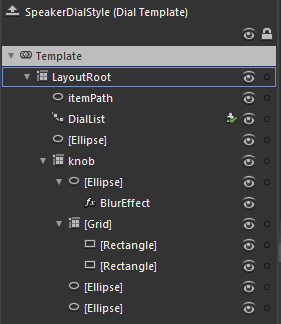
The template to the left shows the entire template for the black speaker-style dials in the top right of the sample application above. This is a good starting point for creating styles for the dial since it is very simple.

There are three key elements to note:

  1. The “itemPath” element is the ellipse that defines where the dial positions end up.
  2. The “DialList” element is the path list box that uses the itemPath. The Dial control won’t work without this. Any style for the Dial control must include a PathListBox control called “DialList”.
  3. The “Knob” grid contains the visual elements that are rotated – more about this below.

The remaining elements are not doing anything interesting other than adding to the visual appearance of the knob.

In order to get the knob to rotate, I have bound it to the RotationAngle property:

   1: <Grid x:Name="knob" Margin="10" RenderTransformOrigin="0.5,0.5">
   2:     <Grid.RenderTransform>
   3:         <CompositeTransform Rotation="{Binding RotationAngle, RelativeSource={RelativeSource TemplatedParent}}"/>
   4:     </Grid.RenderTransform>
   5:  
   6:     ...
   7:  
   8: </Grid>

The RotationAngle property calculates the correct position by looking at the DialList PathListBox, determining the rotation of it, and the span. You may have noticed that I used the “RelativeSource” syntax inside a regular Binding instead of using the TemplateBinding syntax. I did this out of habit, since elsewhere I use property converters on bindings in the other templates, and the TemplateBinding class does not support converters.


Here is an example that uses a converter:


   1: <LinearGradientBrush EndPoint="0.5,1" MappingMode="RelativeToBoundingBox" StartPoint="0.5,0">
   2:     <LinearGradientBrush.RelativeTransform>
   3:         <CompositeTransform CenterY="0.5" CenterX="0.5" 
   4:             Rotation="{Binding RotationAngle, RelativeSource={RelativeSource TemplatedParent}, Converter={StaticResource negativeConverter}}"/>
   5:     </LinearGradientBrush.RelativeTransform>
   6:     <GradientStop Color="Black" Offset="1"/>
   7:     <GradientStop Color="#FF3B3B3B"/>
   8: </LinearGradientBrush>

Feel free to use this control in your own projects.

Saturday, July 31, 2010

A Dial (User) Control

I’ve had a busy month on the road visiting clients (and catching up afterwards), so my blog has been pretty quite. But I’ve finally had some time to sit down and play with a couple of ideas I’ve had around using the path list box. I’ve been wanting to make a dial control for quite a while and when the path list box came along in Silverlight 4 it sparked a couple of ideas of how I might do it fairly easily.

Here is a sample application with a single Dial UserControl scaled to a couple of different sizes. At the moment, the only way to change the value of the dial is to click on one of the numbers or lights (one goes to eleven):

You can grab the source here, although at this stage it is still in the “experimental” phase (and I think I left a couple of unused test control templates in there) so play with it at your own risk. There is a bit of left over unused code from the process of trying different things out. I also don’t do much in the way of error or bounds checking so it’s probably quite easy to set the Value and MaxValue to values that cause Silverlight and/or Blend to die horribly. I am going to turn it into a fully skinnable custom control with all the right kinds of checks, but thought it worth putting a post up now and going over some of the challenges I faced with this particular control. It has been nearly a month after all.

Working with the PathListBox

I used the PathListBox control for the dial numbers and lights. If you haven’t used the Path ListBox before then here is a good series on it. The finished UserControl has a MaxValue property that lets you specify how many numbers should appear on the dial, but at the start I just had a the shapes for the dial and used a PathListBox with some fixed items in it.

orientations The first challenge was to get the PathListBoxItem control template to show a mix of orientations. There are two kinds of orientations you can have with a PathListBox: None and OrientToPath. The effects of each of these settings can be seen in the image to the right. If I used Orientation = None the numbers end up being rotated. If I use OrientToPath the light ends up below the number.

What I needed was a way to have the numbers use Orientation = None, and the lights to use Orientation = OrientToPath.

The solution was to change the control template setting that Blend creates by default. The outermost grid in the control template has the following XAML when the template is created:

   1: <Grid Background="{TemplateBinding Background}" RenderTransformOrigin="0.5,0.5">
   2:     <Grid.RenderTransform>
   3:         <TransformGroup>
   4:             <ScaleTransform/>
   5:             <SkewTransform/>
   6:             <RotateTransform Angle="{Binding OrientationAngle, RelativeSource={RelativeSource TemplatedParent}}"/>
   7:             <TranslateTransform/>
   8:         </TransformGroup>
   9:     </Grid.RenderTransform>
  10:  
  11:     ....
  12:  
  13: </grid>

I changed this to use two child grids and moved the binding to OrientationAngle into one of the child grids:


   1: <Grid Background="{TemplateBinding Background}" RenderTransformOrigin="0.5,0.5">
   2:     <grid>
   3:         <Grid.RenderTransform>
   4:             <TransformGroup>
   5:                 <ScaleTransform/>
   6:                 <SkewTransform/>
   7:                 <RotateTransform Angle="{Binding OrientationAngle, RelativeSource={RelativeSource TemplatedParent}}"/>
   8:                 <TranslateTransform/>
   9:             </TransformGroup>
  10:         </Grid.RenderTransform>
  11:  
  12:     .... items in this grid will be oriented to the path
  13:  
  14:     </grid>
  15:     <grid>
  16:  
  17:     .... items in this grid will not be oriented
  18:  
  19:     </grid>
  20: </grid>

Now with the PathListBox.Orientation=OrientToPath, only the first grid (containing the light) will rotate, the second grid (containing the number) will be unaffected. Even though the light itself is round and isn’t visually affected by the Orientation, its placement is affected.


Creating the Dial Numbers


I added a Value and a MaxValue dependency property to the UserControl. The MaxValue determines how high the dial goes up to, and the Value determines the current value of the dial. The UserControl has it’s own internal list of items that it recreates whenever MaxValue changes. The PathListBox binds to this list for it’s ItemsSource, and the data template for the PathListBoxItem binds to values on the classes inside the list. This approach reflects a half solution for something that I may or may not do when converting it to a custom control, but the relevant part here is that the list items are driven by the MaxValue property on the UserControl.


Making the Knob


The dial knob presented a couple of challenges. The first was to create the ridged look around its edge. I played with a couple of ideas, but the simplest solution was to use the Star RegularPolygon, which is available under the “Shapes” category in Blend. The RegularPolygon has an InnerRadius property which I set to 98% so that the points are only on the edge, and it has a PointCount property to determine, unsurprisingly, the number of points around the edge. The challenge was that I wanted the dial to work at different sizes, but the PointCount that works for a large dial doesn’t work for a small dial.


I used the Width of the dial to drive the PointCount with a new property on the UserControl and a ValueConverter. I was originally going to just use a ValueConverter and bind to ActualWidth, but there is a known bug where the notification for the change in ActualWidth is not being fired so this always returns 0 to the converter unless the form is resized. The suggested work around is to attach to the SizeChanged event and force a re-layout, but I decided that was too much of a hack, so I added my own DialWidth dependency property and set that to the actual width in the SizeChanged event.


I wrote the ValueConverter to be a generic division converter that returned an integer number; the ConverterParameter can be set to the desired denominator. In the end I could probably have done away with the value converter and DialWidth property and just added my own PointCount property that was recalculated on SizeChanged – and I may yet do that when I convert this into a custom control.


The second challenge was to have the knob rotate to the correct value (including the ridges, center graphic, and position light), but keep the LinearGradient brush fills oriented the same so the light still appears to come from the top:


dialpositionsThe knob is contained within two child grids (I used two to have the lights sit above the drop shadow of the dial). The topmost grid has it’s rotation translation template-bound to a new RotationAngle dependency property on the UserControl which is calculated whenever the Value property changes. The gradient brushes of the shapes that make up the knob have their rotation translation bound to the RotationAngle too, but they also use another simple ValueConverter I wrote to return the negative of the value passed to it. So the gradients are rotated anti-clockwise the same amount that the grid containing the dial is rotated clockwise.


The Next Step


As part of converting it to a custom control, I plan to add some better interaction support. Currently the only way to interact with it is by clicking on the lights or numbers to spin the dial to that position. I will add support for the mouse wheel, and (hopefully) support for clicking the knob and dragging it to the desired position (with snapping). I also plan to structure it so that it’s easy to skin and produce some nicely different styles of dials.


So grab the source if you want to have a look, but be warned – it’s a little messy in there, and the documentation is almost non-existent.

Wednesday, June 30, 2010

Custom Controls – Extending the TextBox

The good folks over at Silverlight Show have just put up my article about writing a custom control. One of my earliest posts was on using a UserControl to create a WatermarkedTextBox. I’ve been meaning to follow up on it for a while on how to achieve the same thing (but better) using a Custom Control. In the example below it’s wired up as a filter for the list box. You can check the “Styled” box to apply a different style to the whole app, including the WatermarkedTextBox.

Go over to Silverlight Show to grab the source and read the full article.

Monday, June 28, 2010

A Chrome and Glass Theme- Part 8

Introduction

In this post I’m going to show you how to make the radio buttons I blogged about previously. These buttons have gone through many iterations and I’m still not sure I’m quite happy with them just yet, but I’ll cover them anyway since they introduce a few interesting attached properties. Here is the sample I’ve been building up, now with the radio buttons:

You can grab the source here.

This post is the 8th in a series. If you are not familiar with styling controls in Blend, or working with Resource Dictionaries then I would recommend that you start at the beginning of the series.

The Radio Button

When I first attempted this button I ended up with horribly complicated arrangement of shapes to get it to scale properly. I had placeholders and spacers and grids within grids, with some of them having their height bound to their widths (which doesn’t work very well). And I had half circles on the ends with gradient blends merging seamlessly into the gradient blend on a rectangle in the middle. It was pretty awful.

The previous blog about Automatic Rectangle Radius X and Y should give you an idea of a simpler way to achieve the look. In the end I went with the attached properties since they work nicely both at run-time and design-time. If you grab the source from the link above, you may have to build it in Blend to get it to use the attached properties on the design surface.

The RadioButton inherits from the ToggleButton, as does the CheckBox. They all have a common theme of the button being checked, unchecked, or indeterminate; The radio button just has a different visual appearance, and adds the GroupName property. This style could be adapted for the ToggleButton too, but it wouldn’t really work as a style for a CheckBox.

The contents for this button are grouped in a grid with two columns; the left column contains the orb, the right column contains the ContentPresenter element.

Creating a custom style template for a radio button shouldn’t be difficult at all if you have been following along with the series, but I thought it might be worthwhile to look at some of the elements that make up this button.

Scalable Rounded Ends

A rectangle has the RadiusX and RadiusY properties that let you turn the sharp corners into rounded corners. For this button I want the rounded ends to stay rounded, at the right proportion, regardless of the size of the button. Unfortunately, there is no easy way to set those properties to be half of the height of the rectangle.

As mentioned in the post about Automatic Rectangle Radius X and Y I used an attached property to achieve the rounded ends since that gave me the best result when working with Blend. I use 3 rectangles in the button: one for the rim using the ChromeBorder resource brush, one for the main body using the ChromeFill resource brush, and one the same size that uses the ChromeDarkeningLinear resource brush to make the white text stand out better.

The ellipse is used on the right end of the button to add some dark shading to make the button look rounder, and the Orb grid uses the same principle as this post.

I created an attached property called IsRounded that, when true, uses another attached property called RoundCapsRatio (which defaults to 0.5 if unset) that it multiplies against height or width (whichever is smaller) and applies to the RadiusX and RadiusY properties of the rectangle it is attached to. You may have to build the solution once in Blend to have it applied properly, but then the corner radius automatically updates in blend as the rectangle it is applied to changes size.

Scalable Orb

The other attached properties I created are WidthRatio and HeightRatio (not used in this example). I use the WidthRatio attached property on the Orb grid to keep it perfectly square so the ellipses inside it stay round. I can’t have this happen without an attached property because there is no other way (that works in Blend) to set the width of an element to be relative to the height. I set the WidthRatio to the value “1” to achieve this. I could have just used a Boolean attached property, but having the ratio makes it more reusable.

If you use both the attached properties on a visual element, the handler will prefer the WidthRatio over the HeightRatio. Here is the method that applies the property values. It only applies the values if they have actually been set:

   1: private static void UpdateSizeRatio(FrameworkElement element)
   2: {
   3:     double ratio;
   4:     if (element.ReadLocalValue(WidthRatioProperty) != DependencyProperty.UnsetValue)
   5:     {
   6:         ratio = (double)element.GetValue(WidthRatioProperty);
   7:         double height = element.ActualHeight;
   8:         if (!double.IsNaN(height) && height > 0)
   9:         {
  10:             element.Width = height * ratio;
  11:         }
  12:     }
  13:     else if (element.ReadLocalValue(HeightRatioProperty) != DependencyProperty.UnsetValue)
  14:     {
  15:         ratio = (double)element.GetValue(HeightRatioProperty);
  16:         double width = element.ActualWidth;
  17:         if (!double.IsNaN(width) && width > 0)
  18:         {
  19:             element.Height = width * ratio;
  20:         }
  21:     }
  22: }

Conclusion


As far as radio buttons go, these are fairly limited in their application since they are so big. They are too big to use in the same way as you would normally use a radio button, but they do make quite good navigation buttons instead of using tabs.


The use of Attached Properties seems the best solution for adding behavior to a visual element that works at design time in Blend, but it’s not ideal – I would really rather have a way to do this using Blend that didn’t need me to swap into the XAML.


References:


The icons are from the Tango Desktop Project.