Wednesday, April 7, 2010

Changing Data-Templates at run-time from the VM

[Updated – Fixed code samples]
What do you do when you have a list box or data grid that has a collection of items to display - but some items need to be presented differently than others? For example, I may have a collection of company staff members to display in a single ListBox, but the managerial staff need to have extra information displayed (they always do!), and each level is styled slightly differently like this for example:


In this post I'll describe a technique I have used successfully before - I'll stick with the list of staff example above to illustrate the solution, but the class types are going to be a little contrived for the sake of simplicity.

The Data
Lets define a StaffMember class like this:
   1: public enum StaffRoleType { Manager, MiddleManager, LowerManager, Pleb, Contractor }
   2:  
   3: public enum CoffeeType { Espresso, Cappuccino, HotChocolate, Other }
   4:  
   5: public class StaffMemeber  
   6: {
   7:     public string Title { get; set; }
   8:     public string FirstName { get; set; }
   9:     public string LastName { get; set; }
  10:     public StaffRoleType StaffRole { get; set; }
  11:     public CoffeeType CoffeeType { get; set; }
  12:     public Color FavouriteColor { get; set; }
  13:     public string CarType { get; set; }
  14: }

The StaffRoleType will be used to differentiate the managers from the plebs so we can display the really important information for managers like what kind of coffee they drink and what their favourite color is. If this was real code we might have a different class for each role type, and they would all implement the INotifyPropertyChanged interface. But that class will do for demonstration purposes.


Different Data = Different Data Templates

A nice way to solve this problem would be if we could somehow use different data templates to display each type of staff- but do this inside the existing controls like a ListBox. Ideally we could use Blend to design these different data types too. Of course, the ListBox doesn't let us define more than one data template for the ListBoxItem; but rather than try and rewrite the ListBox, we can achieve our goals with a couple of simple additions to the ContentControl:


   1: using System.Collections.ObjectModel;
   2: using System.Linq;
   3: using System.Windows;
   4: using System.Windows.Controls;
   5: public class SelectableContentControl : ContentControl
   6: {
   7:   public static readonly DependencyProperty TemplateNameProperty = DependencyProperty.Register(
   8:      "TemplateName",
   9:      typeof(string),
  10:      typeof(SelectableContentControl),
  11:      new PropertyMetadata(string.Empty, TemplateNameChanged));
  12:   
  13:   private readonly ObservableCollection<DataTemplate> templateCollection = new ObservableCollection<DataTemplate>();
  14:   
  15:   /// <summary>
  16:   /// Gets the collection of templates
  17:   /// </summary>
  18:   public ObservableCollection<DataTemplate> Templates
  19:   {
  20:      get
  21:      {
  22:          return this.templateCollection;
  23:      }
  24:   }
  25:   
  26:   /// <summary>
  27:   /// Gets or sets the name of the template to use
  28:   /// </summary>
  29:   public string TemplateName
  30:   {
  31:      get
  32:      {
  33:          return (string)GetValue(TemplateNameProperty);
  34:      }
  35:   
  36:      set
  37:      {
  38:          SetValue(TemplateNameProperty, value);
  39:      }
  40:   }
  41:   
  42:   /// <summary>
  43:   /// Select the appropriate DataTemplate when the Content changes.
  44:   /// </summary>
  45:   /// <param name="oldContent">The old Content value.</param>
  46:   /// <param name="newContent">The new Content value.</param>
  47:   protected override void OnContentChanged(object oldContent, object newContent)
  48:   {
  49:      base.OnContentChanged(oldContent, newContent);
  50:      this.SelectTemplate();
  51:   }
  52:   
  53:   private static void TemplateNameChanged(DependencyObject d, DependencyPropertyChangedEventArgs e)
  54:   {
  55:      ((SelectableContentControl)d).SelectTemplate();
  56:   }
  57:   
  58:   private void SelectTemplate()
  59:   {
  60:      if (!string.IsNullOrEmpty(this.TemplateName))
  61:      {
  62:          DataTemplate namedTemplate =
  63:              this.Templates.FirstOrDefault(
  64:                  t => t.GetValue(FrameworkElement.NameProperty).Equals(this.TemplateName));
  65:          if (null != namedTemplate)
  66:          {
  67:              this.ContentTemplate = namedTemplate;
  68:              return;
  69:          }
  70:      }
  71:   
  72:      // default to the first template
  73:      if (this.Templates.Count > 0)
  74:      {
  75:          this.ContentTemplate = this.Templates[0];
  76:      }
  77:   }
  78: }


The new control has two key properties:


  • Templates - an ObservableCollection of DataTemplate
  • TemplateName - a string representing the name of the template to choose.
The Templates property allows us to declare multiple DataTemplates in the XAML, and the TemplateName property allows us to bind to a property on the data to select which template to use. If we had multiple class types in our list, such as a Manager class etc, then we could bind on the ClassName, or even the class itself with a value converter.


This is what the XAML for a ListBox may look like:


   1: <ListBox ItemsSource="{Binding StaffList}" >
   2:     <ListBox.ItemTemplate>
   3:         <ss:SelectableContentControl TemplateName="{Binding StaffRole}" Content="{Binding}">
   4:             <ss:SelectableContentControl.Templates>
   5:  
   6:                 <!-- default for unmatched StaffRoleType values -->
   7:                 <DataTemplate>
   8:                     <local:PlebianUC />
   9:                 </DataTemplate>
  10:  
  11:                 <!-- Contractor template -->
  12:                 <DataTemplate x:Name="Contractor">
  13:                     <local:ContractorUC />
  14:                 </DataTemplate>
  15:  
  16:                 <!-- Contractor template -->
  17:                 <DataTemplate x:Name="MiddleManager">
  18:                     <local:MiddleManagerUC />
  19:                 </DataTemplate>
  20:  
  21:                 <!-- Contractor template -->
  22:                 <DataTemplate x:Name="Manager">
  23:                     <local:ManagerUC />
  24:                 </DataTemplate>
  25:             </ss:SelectableContentControl.Templates>
  26:         </ss:SelectableContentControl>
  27:     </ListBox.ItemTemplate>
  28: </ListBox>


So what's going on here?


The ListBox has it's ItemsSource bound to a property on the DataContext called StaffList, which contains a collection of StaffMember instances. The ListBox.ItemTemplate contains a single SelectableContentControl with its TemplateName property set to "StaffRole" and it's Content bound to the DataContext of the ListBoxItem. At run time when a DataTemplate is being created for each item in the listbox and the item is databound to it, the SelectableContentControl will read the StaffRole property and find a template with the same name as the StaffRole value. The first DataTemplate in the Templates collection will be used for any data items that have a StaffRole value that doesn't match a Template name. We don't even need a value converter in this example, since the StaffRole property will convert to a string without one.


In order to make this technique friendly to Blend you need to create a UserControl for each of the DataTemplates so that the content can be styled in Blend. If you are more comfortable writing XAML than using Blend then you can skip the UserControls and put the content directly in the DataTemplates. Either way, you will still need to specify the DataTemplate collection by hand in XAML since Blend doesn't provide and easy way to edit a collection of DataTemplate instances (at least that I know of)


Feel free to copy the code above and use it in your own projects. Let me know if you find it useful.

A Chrome and Glass Theme - Part 3

In the first two parts I covered how to use Blend to create reusable resources for brushes and styles, and we styled a Border control and a Button control.

In this post we are going to style two more relatively simple controls: a TextBox, and a CheckBox. So start by re-opening your solution from last time (you can grab it here if you haven't been following along). This is what the final styles will look like:


You can grab the solution containing these styles here.

First: Improve the Button
But first, I want to quickly revisit the Button style we created last time - after playing around with it some more, I don't like the way it looks when it's disabled. We didn't change the default disabled state appearance, which grays-out the control by changing the opacity of the "DisabledVisualElement" rectangle. The problem is that when the button is disabled, it actually stands out more than any enabled buttons around it - which it shouldn't.

To fix it, we are going to give it a glassy look when it's disabled.

Select the button we created last time and use the bread crumb trail to edit the control template. Open up the Object tree and select the grid control under the "Background" Border control. Click the Advanced Properties Options button on the right of the Background brush and select "Reset" to get rid of the link to the template background color.

Select the "DisabledVisualElement" and change it's Fill to a linear gradient with the following markers:
  1. #FFFFFFFF Position: 12.7%
  2. #FFCDCDCD Position 32.8%
  3. #FF898989 Position 35.2%
  4. #FFC2C2C2 Position 39.6%
  5. #FFB3B3B3 Position 49.3%
  6. #FFFFFFFF Position 52.4%
  7. #FF252525 Position 55.6%
  8. #FF808080 Position 100%
And click the little down arrow below the brush editor to show the advanced properties of the gradient brush, and change the Opacity of the whole brush (not the rectangle) to 31%. Now convert that to a new resource called "ChromeGlassFill" in our ChromeGlass resource dictionary.

Finally, select the "Disabled" state, set the Opacity of the BackgroundGradient rectangle to 0%, the Opacity of the DisabledVisualElement rectangle to 100%, and the Opacity of the ContentPresenter to 50%. And set the margins of the DisabledVisualElement to 2. Use the Bread Crumb Trail to exit the style template back into the MainPage. The image to the left shows the button now in it's different enabled states.

The TextBox Control
Before we create a TextBox control we have to group our existing button into a Grid since a Border can only contain one control. Right click the button and press Ctrl + G to group it into a Grid control. Blend will have set the margins on the grid to fit exactly around the button, and changed the button horizontal and vertical alignments to Stretch so reset the margins of the new Grid back to 0, make sure the horizontal and vertical alignments are both Stretch, and the Width and Height are both Auto. Of course now our button takes up the entire grid, so change it's width back to 140, and it's height back to 30. And drag it back into place.

Now add a TextBox control to the Grid, make it about the same size as the button. From the Object menu, select "Edit Style" | "Edit Copy..." and save it as "TextBloxGlassyStyle" in our ChromeGlass resource dictionary. Set it's Background brush to our new "ChromeGlassFill" brush, and it's border to the "ChromeBorder" fill. Set the Foreground brush to a white solid color, the CaretBrush to a white solid color, and the SelectionForeground to black.

Now use the Breadcrumb Trail to edit the current template and open up the object tree. Select the self-named "Border" control and reset it's Background brush to be empty - we are going to animate the opacity of the background, but if we do it on the Border then it will also affect it's child controls.

Create two new rectangles inside the Grid called "UnfocusedBackground" and "EditingBackground" positioned as the first children of the grid as shown in the image to the left. Make sure the margins of the rectangles are reset to 0, the horizontal and vertical alignments are set to Stretch, and the Width and Height set to Auto.

Select the UnfocusedBackground rectangle and use the Advanced Property Options button on it's Fill to use Template Binding to the Template's Background property. Set it's stroke to No Brush.

Select the EditingBackground rectangle, set it's Fill to #4CFFFFFF, and it's Opacity to 0%.

Make the following changes to the Focused State:
  • Set the UnfocusedBackground Opacity to 0%
  • Set the EditingBackground Opacity to 100%
  • Set the FocusVisualElement Opacity to 50%
  • Set the FocusVisualElement Margins all to 0
And these changes to the Disabled State:
  • Set the Border Opacity to 75%
  • Set the ContentElement Opacity to 50%
  • Set the DisabledVisualElement Opacity to 0%

That's our TextBox done. Exit the Style Template and run the solution to try it out.


The CheckBox Control
Create a CheckBox control and use the same technique as for the TextBox control to create a style called "CheckBoxGlassyStyle" in our resource dictionary.

While editing the style, set the BorderBrush to our ChromeBorder LinearBrush resource and set the Foreground to White. Now use the Breadcrumb Trail to edit the control template and make the following changes to the controls inside the template (you can ignore the warnings about animations being removed):
  • Set the Background control's Fill to our GlassFill resource
  • Set the BoxMiddleBackground control's Fill to our ChromeFill resource (you will have to Reset it first)
  • Set the BoxMiddle control's Fill to our ChromeGlassFill resource and it's Stroke to our GlassBorder resource
  • Set the CheckIcon control's Fill to white
  • Set the IndeterminateIcon control's Fill to our ChromeFill resource
You can see the benefit of saving our linear gradient brushes as resources - that saves us a lot of time!

Now we just need to update the states:

MouseOver State
  • Set the BackgroundOverlay Opacity to 30%
  • Set the BoxMiddleBackground Opacity to 30%
Pressed State
  • Set the BackgroundOverlay Opacity to 0%
  • Set the BoxMiddleBackground Opacity to 100%
Focused State
  • Set the ContentFocusVisualElement Opacity to 50%
And that's it! Exit the template back into the Main Page and run your solution.

In the sample at the top of the post I've bound the IsEnabled property of the TextBox and Button to the CheckBox so you can see what they look like disabled.

You can grab the solution containing the above styles here.

Saturday, April 3, 2010

A Chrome and Glass Theme - Part 2

Well - it's a long weekend here in New Zealand due to the Easter holidays, so I have some spare time to do another post in this series earlier than I would otherwise have had.

In the last post we created a resource dictionary and defined some brush and style resources to create a glassy panel. In this post we are going to define some more brush and resource styles for a chrome looking button. Here is what the button will look like:

Open up the solution from the last post - if you haven't been following along so far, you can grab the solution so far here.

Editing the Button Style
Select the Border control and create a button inside it about 140x30 in size. Click the "[Button]" button on the breadcrumb trail bar and edit a copy of the button template. Call the new style "ButtonChromeStyle" and be sure to select the "Resource Dictionary" option to create it in our ChromeGlass resource dictionary.

Blend has created a copy of the default style and control template of the button. But before we change the appearance of the elements inside the control template, click the "artists palette" icon in the breadcrumb trail so that we are editing the style itself, and not the control template inside the style.

We are going to define the chrome-looking border so select the BorderBrush property on the Properties tab. The button already has a linear gradient so add 3 more markers to the three already there and define the locations and colors as follows:
  1. #FFDCDCDC Position 0%
  2. #FF656565 Position 44.8%
  3. #FFD8D8D8 Position 68.9%
  4. #FF2B2B2B Position 92.6%
  5. #FFE9E9E9 Position 94.8%
  6. #FF494949 Position 97.2%
We are going to want to reuse this brush again so click the Advanced Properties Options button on the right of the BorderBrush property and select "Convert to new resource...". Call it "ChromeBorder".

Select the Foreground property on the style and change it to white - for some reason, the Button control doesn't seem to inherit the white foreground we set on the UserControlStyle from Part 1 in this series, so we must set it on the style.

Editing the Control Template
Now click the "Template" button on the breadcrumb trail to go back to editing the template which looks like the picture on the left.

Select the Background border element in the object tree and select it's BorderBrush. The BorderBrush is bound to the template style that we defined on the actual style - which is the chrome border. Blend sometimes gets confused so if it still shows the old blue linear gradient, don't worry; when we compile and run the solution it will do the right thing.

Now select the Background property and change the "A" (Alpha) value to zero, which should leave a transparent gap inside the button border.

We're going to define our Chrome gradient for the inside of the button so select the BackgroundGradient rectangle in the Object tree and select it's Fill property which is already a linear gradient. The button states (which we will get into later) contain some animation settings for the markers in this existing gradient. We want to clear them and the easiest way to do that is to change it to a solid color, and then change it back to a linear gradient. When you do this you will see a warning appear briefly at the top of the design area warning you that some animations have been deleted. Which is what we want.

Change the color and position of the 5 markers on the linear gradient to these values:
  1. #FFFFFFFF Position 12.7%
  2. #FF878787 Position 51.6%
  3. #FF393939 Position 53.2%
  4. #FF858585 Position 94.8%
  5. #FFFFFFFF Position 100%
And change the RadiusX and RadiusY properties both to 2. Also change the CornerRadius of the BackgroundAnimation border element to 2.

Again, we are going to reuse this gradient later so select the BackgroundGradient element (if it's not already selected), click the Advanced Property Options button and convert it to a local resource called "ChromeFill".

Although we are going to reuse this gradient, it's a little bit to bright for the button since we have specified White as the foreground (text) color on the style. We are going to use another rectangle in the button template to correct this rather than change the gradient brush resource we just created.

Select the [Grid] control inside the Background border control in the object tree, and double click the Rectangle icon on the tool palette. Reset it's margin property (which Blend has probably changed) all to 0s and set it's Stroke property to NoBrush. Also, change it's RadiusX and RadiusY values to 2.

Select it's Fill property and set it to be a linear gradient brush with the following 3 markers:
  1. #4C5F5F5F Position 0%
  2. #4CDCDCDC Position 23.4%
  3. #4C000000 Position 65.7%
We may need to use this gradient again so convert it to a local resource called "ChromeDarkeningLinear" (yup - we are going to create a radial one in a later post). The white text back on the button will now show clearly against the background.

Changing the Visual States
The last thing to do is to change the appearance for the various states that the button can be in. Click the "States" tab and you will see all the various states that a button can be in.

Select the "MouseOver" state - any changes we make to element properties now will only take effect when the mouse is over the control (in the running application). The BackgroundAnimation element already has an animation to change the opacity from 0 to 100 (it has the little red circle on it's icon in the object tree), so select the BackgroundGradient element in the Object tree and change it's opacity to 85%. This will allow a bluish color to show through.

Select the "Pressed" state. There will already be an animation for the Background border element (near the top of the object tree), but we want to change it:

  • Select the Background border element and set it's background brush to black, but change the A value to 50%.
  • Select the BackgroundAnimation element and change it's Opacity to 50%
  • Select the BackgroundGradient element and change it's Opacity to 50%
The last thing to do is to introduce a small animation to move between the Normal and MouseOver states a little more smoothly. Click the down arrow on the "Normal" state and choose the "Normal -> MouseOver" menu item. Set the transition duration that appears to 0.2. Now do the same for the MouseOver state (choosing the "MouseOver -> Normal" item).

Make sure you save your progress, and click the "[Button]" button on the breadcrumb bar to go back out to our main design area. That's the button finished, so run your application and try it out. The final design area should look something like this:

You can download a project containing the above resources here.

In the next post we are going to

Thursday, April 1, 2010

A Chrome and Glass Theme - Part I

This is the first in a series of posts that will cover how to build a nice looking chrome and glass theme. The chrome style will be applied to controls and the glass look will be a balancing style to avoid an overload of shiny; it will also give us a nice gentle background appearance.

In this post we are going to define some gradients and color resources for a glass style that can be applied to a Border control. Here is what the finished button will look like:


We are going to end up with a resource dictionary that we can use with both the ImplicitStyleManager from the Silverlight Toolkit for Silverlight 3, or directly with Silverlight 4. The only difference between the two approaches is that we don't need to add the x:Key="StyleKeyName" attribute on each style, or set the Style property on each control if we want to use it in Silverlight 4.

Setting up our Theme
First we need to create our solution. Start Blend and create a new project (call it something like "ChromeAndGlassTheme". Under the Project menu select "Add new item...", and add a new Resource Dictionary called "ChromeGlass.xaml".

Styling From the Top
The first thing we want to define is the foreground color for text on most of the controls styles we will end up with - which will be white. So select the "[User Control]" root in the Objects tree, and change the foreground to white. We want this setting to be part of the resource dictionary we created, so we do the following to achieve that:
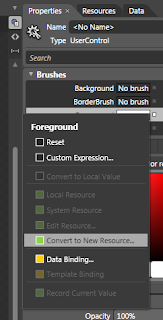
  1. Click the "Advanced Property Options" button (the little square button to the right of the Foreground box)
  2. Select "Convert to New Resource..."
  3. Give it the name (key) "WhiteForeground"
  4. Choose "Resource Dictionary" for the location to define it
  5. Click OK
Since we only have the one Resource Dictionary, it will have created the entry in the ChromeGlass.xaml.

Next, with the "[User Control]" still selected, open the "Object" menu and select the "Edit Style | Create Empty..." menus. Call the style "UserControlChromeStyle", make sure it is created in our ChromeGlass resource dictionary, and click OK. We are now editing the style resource, not the control. On the properties tab click the Advanced Property Options button for the foreground and select the "Local Resource" sub menu, and choose our "WhiteForeground" resource.

Why have we set this on the UserControl? So that we don't need to explicitly set the foreground color for our child controls (such as labels and buttons); Silverlight will search up to see if any of the parent controls have their foregrounds explicitly set before going back to the default value for the control. So since we have set the style of the UserControl to have it's foreground white, all child controls that we place inside it will use WhiteForeground unless we set them otherwise.

Now select the "LayoutRoot" grid and set it's background to black. We could have created a style like we did for the UserControl, but background is not one of the values that is propagated to child controls - and we won't want it passed down anyway.

The Gradients
Our chrome and glass styles are going to rely heavily on a couple of gradient brush resources we are going to define. First lets create the glass panel that can contain our controls. Create a new Border element and make it about 300px wide and about 120px high. Before we create a style for it, we should clear any changes that Blend has already made to the Border's properties. Click the Advanced Property Options box to the right of the Background property and select "Reset". Do this also for the BorderBrush, BorderThickness, and CorderRadius properties.

Now create a new empty style for it like we did for the UserControl - call it "BorderGlassStyle" and be sure to create it in our resource dictionary.

Select the "BorderBrush" property and select the Gradient Brush option below it. The gradient bar will have two markers - one at each end. Select the left marker and change it's color to White (both markers should now be white). Add another 7 markers by clicking on the gradient bar between the existing markers and set the following values for each marker (1 is leftmost, 9 is rightmost. The "Alpha" refers to the "A" part of the color):
  1. position: 0%. Alpha: 60%
  2. position: 8.5%. Alpha: 0%
  3. position: 37.6. Alpha: 20%
  4. position 41.8%. Alpha: 60%
  5. position 47.7%. Alpha: 20%
  6. position 60.5%. Alpha: 0%
  7. position 76.5%. Alpha: 20%
  8. position 80.7%. Alpha: 50%
  9. position 100%. Alpha: 5%
If you click the down-pointing arrow below the gradient bar you will see some other values we can set for this gradient. Set the the start and end points as follows:
  • Start Point: 0.013, 0.036
  • End Point: 1, 1.005
And set the Border Thickness to 2 for each edge and a Corner Radius of 8. This will make our border look like it is reflecting shafts of light.

We are going to reuse this glassy border brush again, so click the Advanced Property Options button for the BorderBrush property and convert it to a new resource called "GlassBorder".

Since we are editing the style resource, not the Border control itself, lets pop back out to the border to see what it looks like. You can do that by clicking on the "[Border]" part of the Style path at the top of the editing window:


Now we are back in our MainPage file with the Border control selected. Click the little Pac-Man (ok - it's an artist's pallet) shape to go back to editing the style. Now let's create a glassy border for the background.

Select the Background property of the style and again select the Linear Gradient option. We want a total of 5 markers on this gradient. This time we will set the hex values for each of the markers as follows:
  1. #26FFFFFF position: 0%
  2. #194C4C4C position: 40.4%
  3. #19FFFFFF position: 61.4%
  4. #4DFFFFFF position: 71.5%
  5. #18FFFFFF position: 100%
Also set the start and end points to the following:
  • Start point: 0.388, -0.015
  • End point: 0.769, 0.922
You can jump back out of the style now and see what the finished style looks like:

You can download a project containing the above resources here.

In the next post we will create the chrome gradients we are going to need for our controls and create our first control style for the Button control.